Action History
Action History is a system embedded into the workspace that allows you to undo and redo actions. This feature overview will explain how to use it and how it works.
You can find the Action History Controls on the top bar in the workspace.
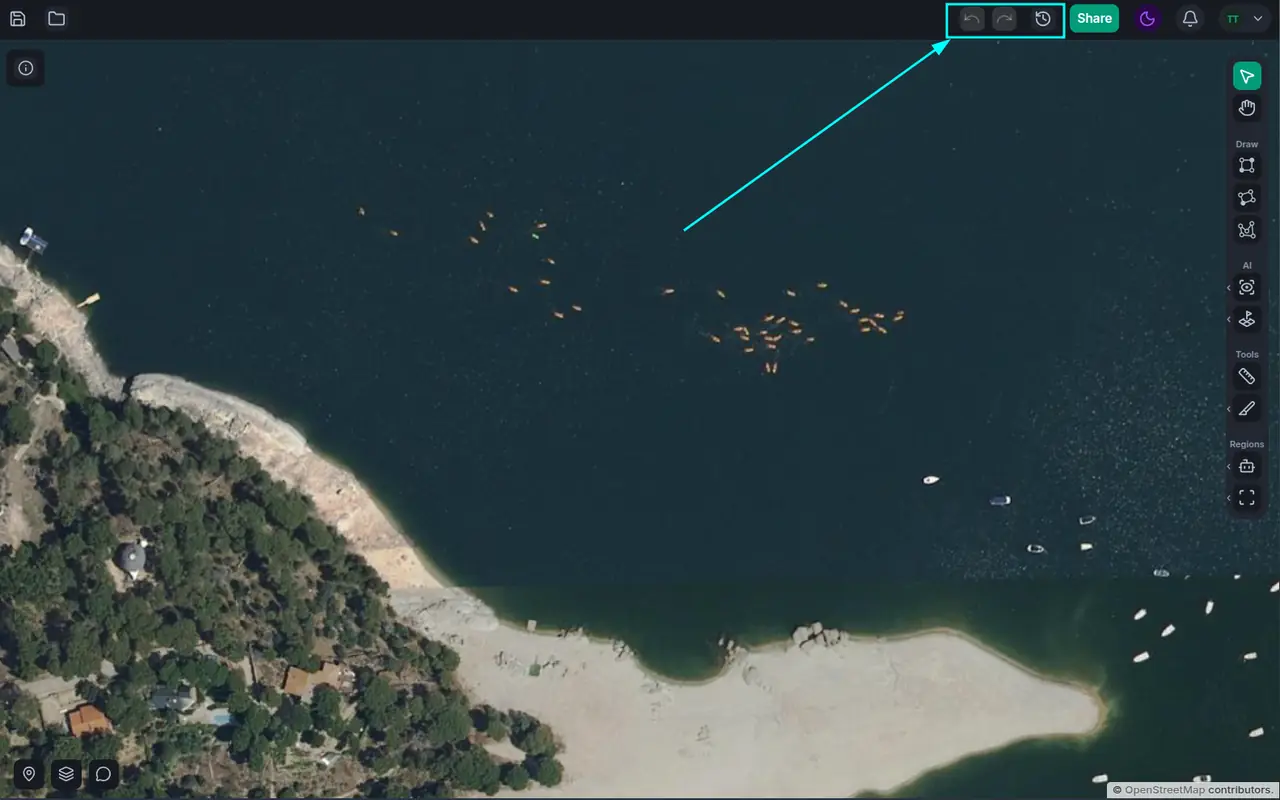
Undo and Redo
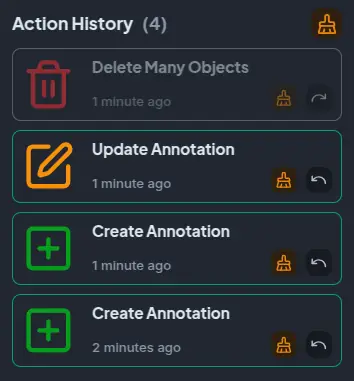
There are several ways to undo and redo actions. The fastest and most intuitive is by using the Ctrl+Z (Undo) or Ctrl+Y (Redo) shortcuts. But you can also click on the Undo and Redo buttons in the controls depicted above, or even undo or redo individual actions from the Action History List View.
Note
The system allows you to undo or redo actions out of order. Certain actions may fail or behave in unpredictable ways when executed out of order, so be aware of this when executing actions from the list view.
Clearing Action History
You can also clear your action history by using the Clear buttons (labeled with a brush icon, and named Clear History for the whole list) in the Action History List View. You can choose to clear individual actions or to clear your whole Action History.
Warning
Actions cleared in this way are completely unrecoverable, so only do this if you are sure you do not need to undo or redo the action(s) you are clearing.
Your action history is also cleared whenever you leave or refresh the applications. It exists in a transient state while you are actively online.
Supported Actions
The following is a list of actions that are supported by our Action History System:
Annotation Operations
Create/Paste
Edit Polygon
Simplify (via Simplification Inspector Widget)
Update Class
Update Data Properties
Slice (using the Knife tool)
Carve (using the Carving tools)
Delete/Cut
Region Operations
Create/Paste
Update Behaviors
Update Color
Rename
Update Description
Delete/Cut
Suggestion Operations
Generate (using the Find Similar tool)
Discard
Confirm
Class Operations
Change Color
Rename
Delete (removes the class’s annotations from that vector layer)
Smart Segmentation Operations
Add Point
Remove Point
Stroke Path
Erase Path
-
Start Sketch
Start Edit
Update Sketch
Sketch Operations Details
Sketch operations might sound strange, but they’re actually quite straightforward. First of all we need to understand what a sketch even is. A sketch is a temporary geometry that you, as the user, are actively working on (be it while editing an annotation, creating brand new regions or annotations, etc.).
The sketch only exists while you are editing it, it then disappears. This means that whenever you complete a sketch (by, for example, confirming the operation), these actions are automatically cleared from your action history, effectively collapsing into the action you executed (e.g. Update Annotation or Create Region).
Tip
If you ever misplace a point or just something goes wrong while you’re drawing, make sure to undo that mistake before you confirm the annotation, it’s often a lot faster than editing it after the fact.