4. Group Management & Station Sharing
SenCore v3.0.0 introduces a collaborative group-based system that allows users to create groups, invite members, and share monitoring stations. This feature replaces the previous role-based permission model with a more flexible, group-based collaboration and access control framework. The Groups section is accessible via the Groups tab in the main navigation bar.
4.1. Creating a Group
To create a new group, navigate to the Groups tab and click the + Create Group button. This opens the “Create New Group” dialog.
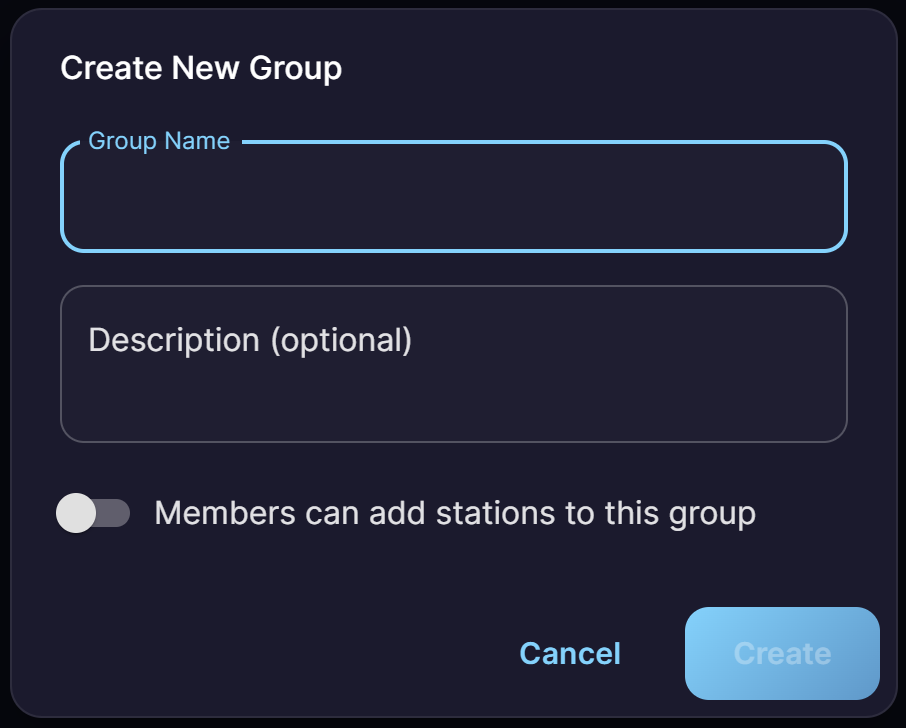
Figure 24: Create New Group dialog
The group creation form includes:
Group Name: A descriptive name for the group (e.g., “Cretan stations”).
Description (optional): A brief description of the group’s purpose (e.g., “Cretan meteo stations”).
Members can add stations to this group: A toggle that controls whether invited members are allowed to share their own stations with the group. This setting is configured at creation time.
After clicking Create, the group is provisioned and the owner can proceed to invite members and share stations.
4.2. Group Management Panel
Once a group is created, clicking on it opens the group management panel, which provides a unified interface for all group operations.
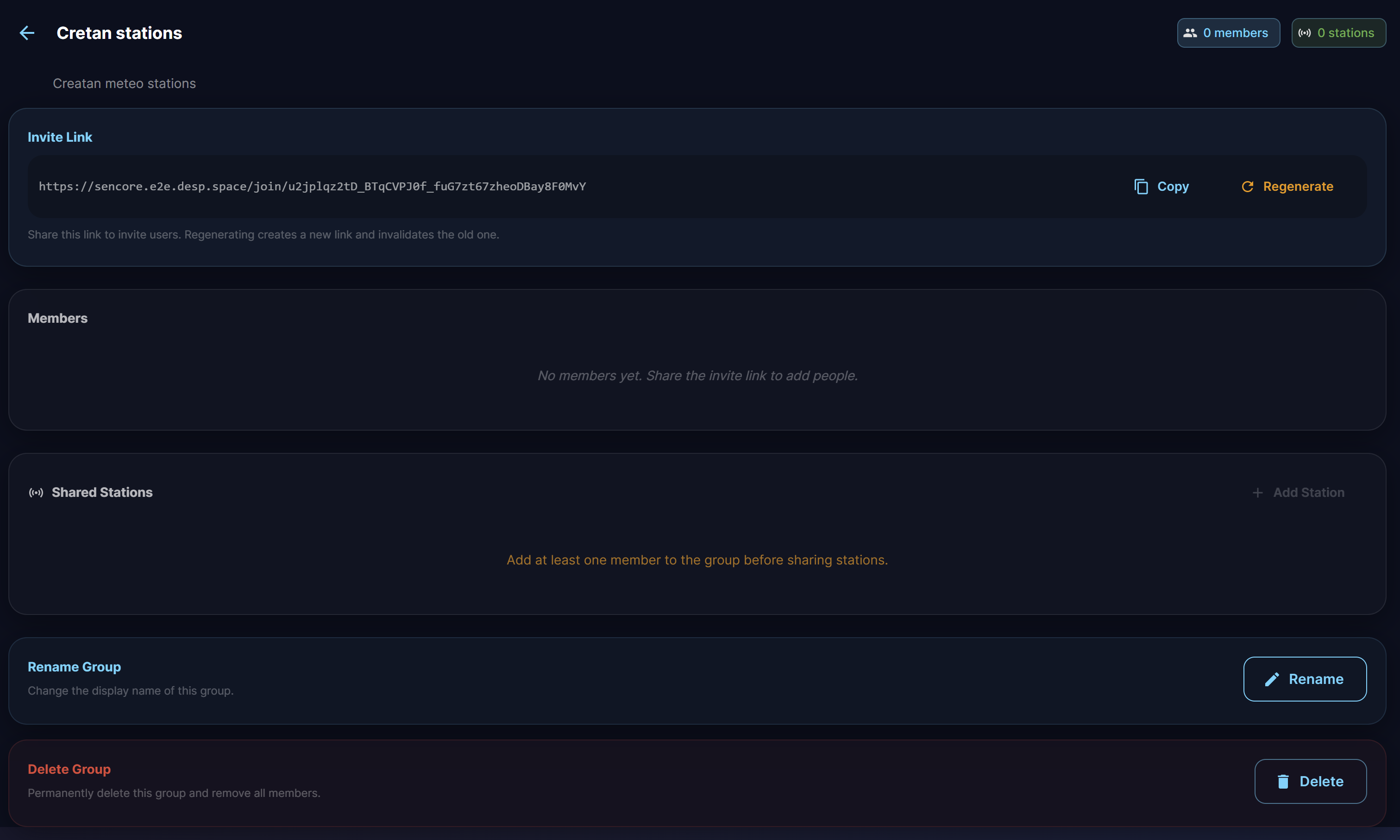
Figure 25: Group management panel
The panel is organized into four sections:
- Invite Link
A unique shareable URL is generated for the group. Users can:
Click Copy to copy the invite link to the clipboard and share it via email, messaging, or any other channel.
Click Regenerate to create a new invite link, which invalidates the previous one. This is useful for security purposes (e.g., after removing a member).
When a user clicks the invite link, they are directed to log in (if not already authenticated) and are automatically added to the group.
- Members
Displays all current group members. The group owner can view and manage the member list. Members can also see who else belongs to the group. When a member is removed, the invite link is automatically regenerated to prevent unauthorized re-entry. Members can leave a group voluntarily at any time.
- Shared Stations
Displays all stations currently shared with the group, with an + Add Station button to share additional stations. At least one member must join the group before stations can be shared. When the “Members can add stations to this group” toggle was enabled during creation, any member can share their own stations — otherwise, only the group owner can.
When a station is shared with a group, all group members can:
View the station details, latest readings, and location
Access the full time-series history and all analytical tools
Export the shared station’s data to CSV
Shared stations appear with an orange marker on the Map View and are identified in the station categories legend as “Shared with me” (see Section 2.5).
- Group Settings
At the bottom of the panel, the group owner can:
Rename Group: Change the display name of the group.
Delete Group: Permanently delete the group and remove all members.