3. User Interface Overview
This is the main menu of the application on startup.
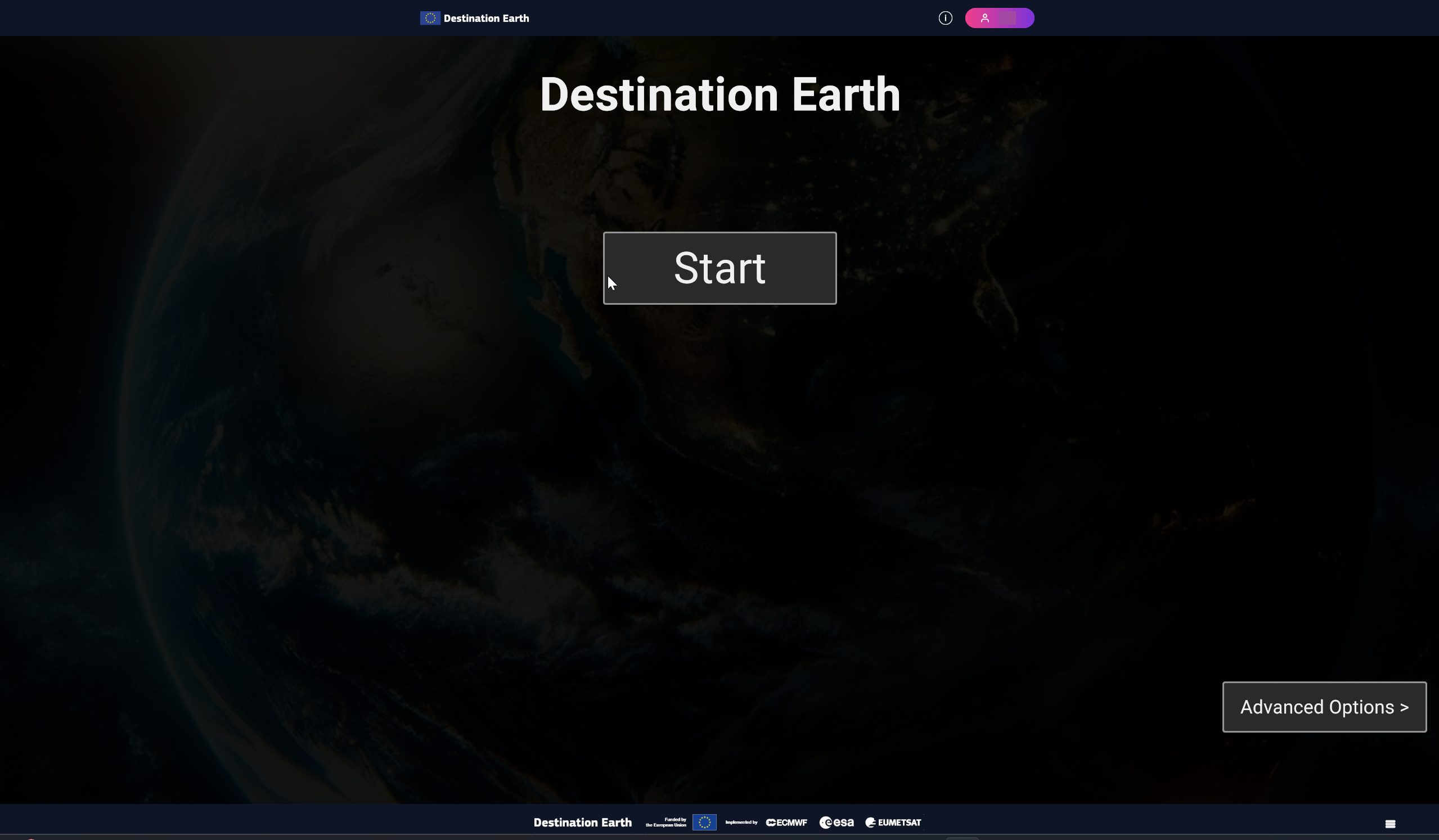
Fig. 3.1 DestinE Main Menu
You can choose to start a session directly, or go to the Advanced Options screen.
From the collapsible Multi-user options menu, you can create your own multi-user session, or join an existing one from the list. Multi-user session can be joined by other users beside the host. You can also search for a session by its IP address.
The clear cache button at the bottom, allow to free cache space, which contains various files related to show or stories. Clearing cache deletes those files. For more information about Shows and Stories, refer to respective chapters.
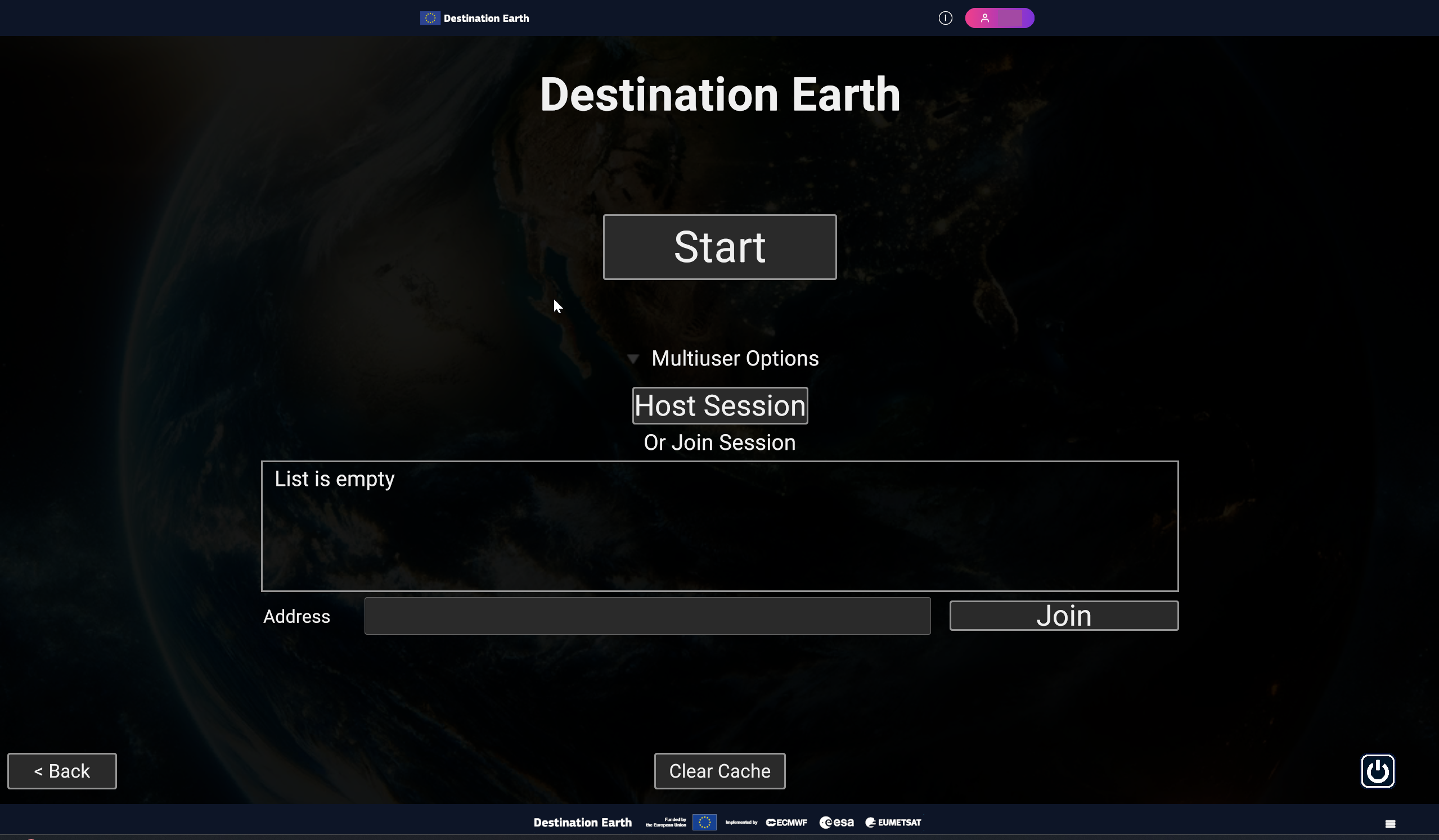
Fig. 3.2 Advanced Options with the panel expanded
When the application starts, if there is an existing session hosted by another user connected in the same LAN, the client automatically detects it and connects to that session after a 10 seconds countdown. If multiple host sessions are present, the first created has the highest priority.
A session is started with an overview of existing shows and stories. You can open them by selecting and clicking on “Load” or “Close” the panel, loading the default empty scene.
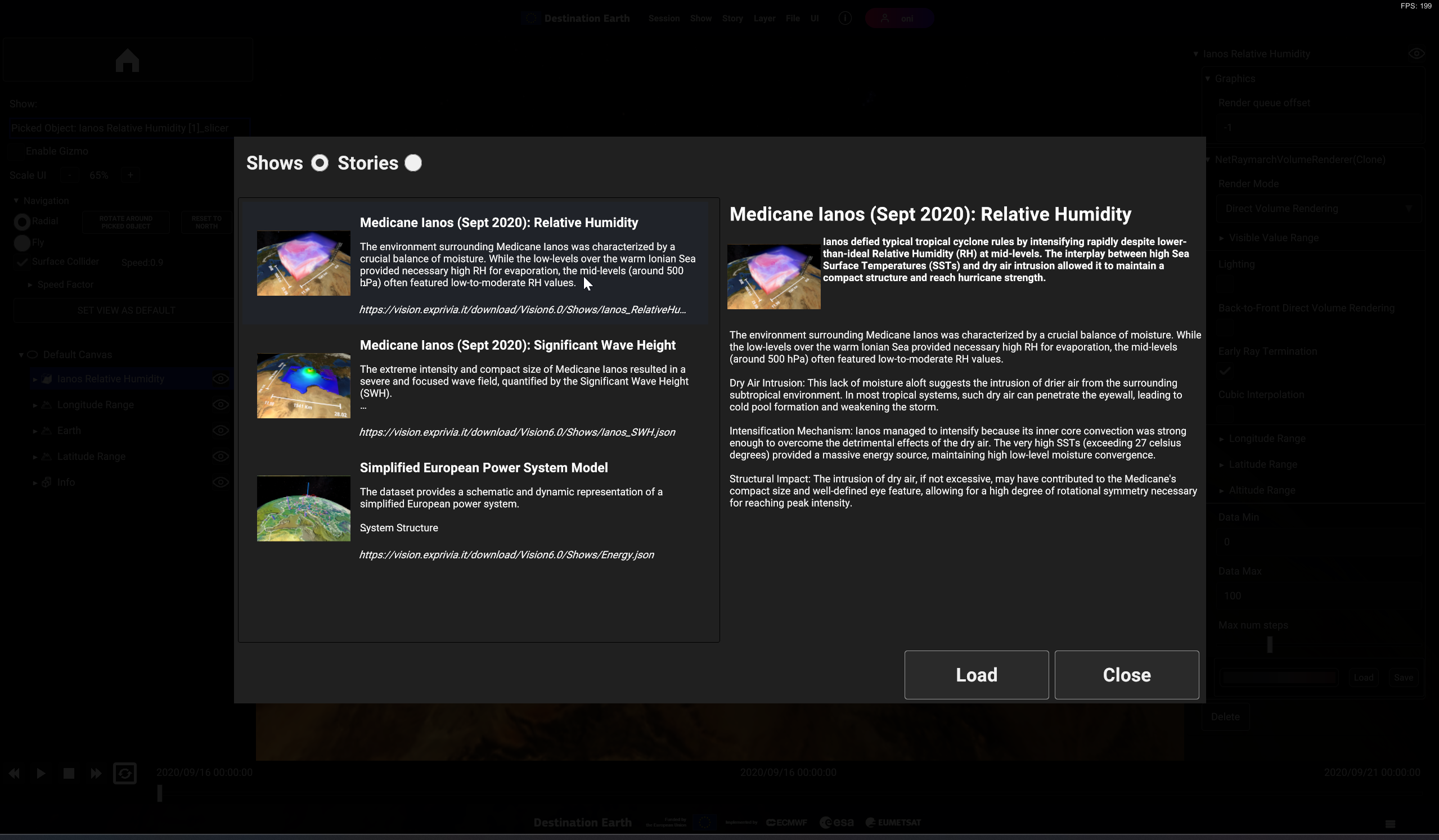
Fig. 3.3 Shows and Stories Overview
The default view shows the 3D digital Earth model, and the 3D viewport surrounded by the UI panels. If you wish to check again the existing content in the overview panel, you can click on the home button at the top left corner. Below is the default scene view in a single user session. For a more detailed description check the paragraph “In App UI”.
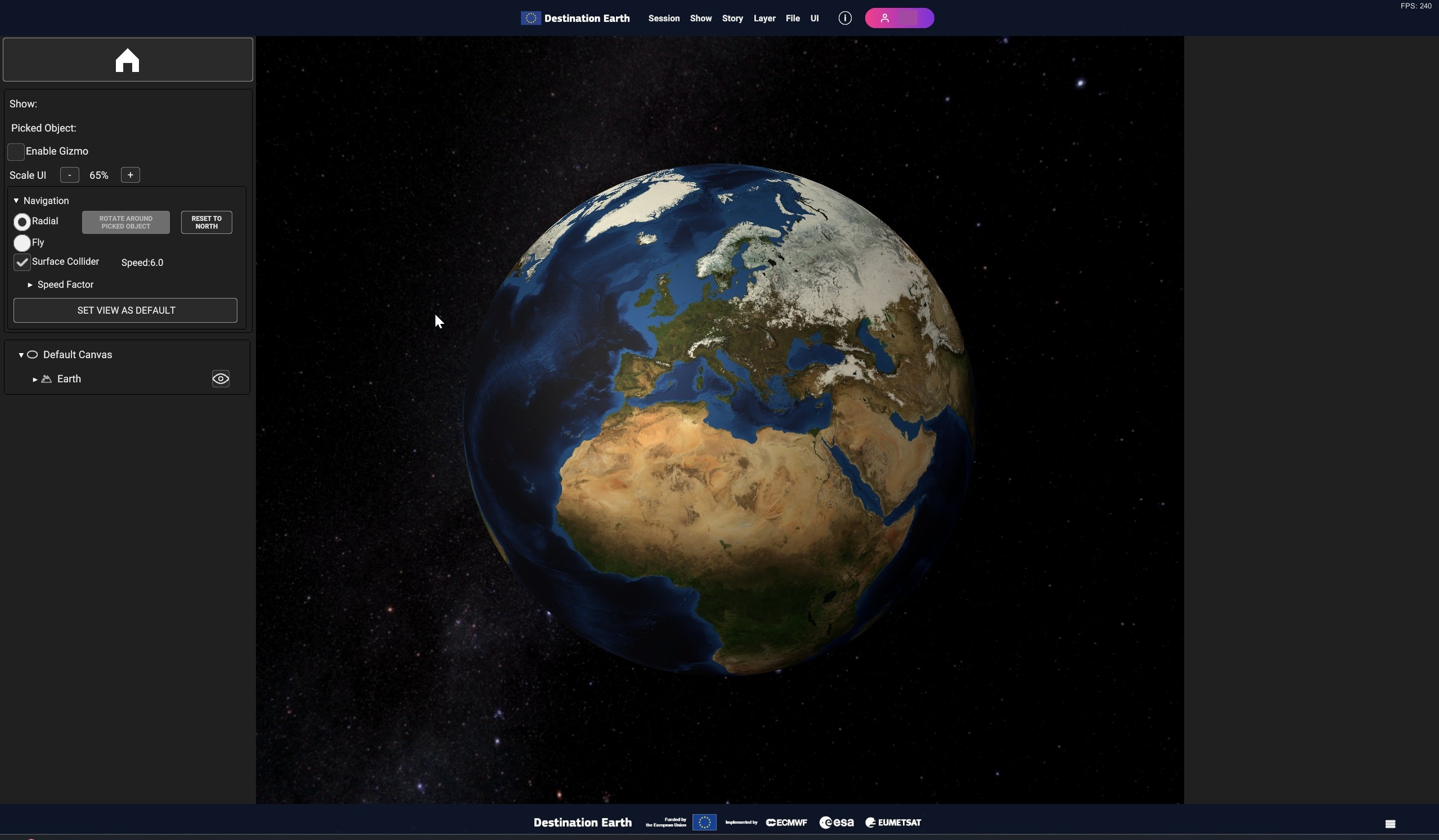
Fig. 3.4 Default 3D view at start
3.1. Multiuser session
In multi-user sessions, only one user can make modifications at a time to avoid conflicts. To ensure conflict avoidance, multi-user mode provides an additional set of features, displaying scene control options at the top right of the screen, grouped together on the top (click on triangle button to expand the menu).

Fig. 3.5 Multi user options panel in the UI scene
At the start of a new host session, no one has control on the scene and all the commands and UI elements that can have effect on the scene are disabled.
To take control click on “Grab”, this will unlock the UI and allow any modification. Click on “release” to return the access to the other users. No one else can grab until the control is released with the exception of the host user, who can do it at any time.
If the holder is inactive, to avoid waiting indefinitely it’s possible to launch a countdown with “Timeout”. The countdown lasts 30 seconds and automatically releases the scene. If the holder is still active and wishes to keep editing the scene, they can reset the timeout with “Reset”.

Fig. 3.6 Multi user option panel with reset enabled for the holder
3.2. In app UI
UI is made of these parts:
Menu Bar
Tools Panel
Camera Panel
Hierarchy Panel
Inspector Panel
Timeline Panel
The default view does not fully display the UI features. The Hierarchy Panel shows information when additional layers are present, otherwise it’s empty. Inspector and Timeline are hidden and they become visible when a scene object is selected.
Below, an overview of the appearance of the UI with a fully populated scene.
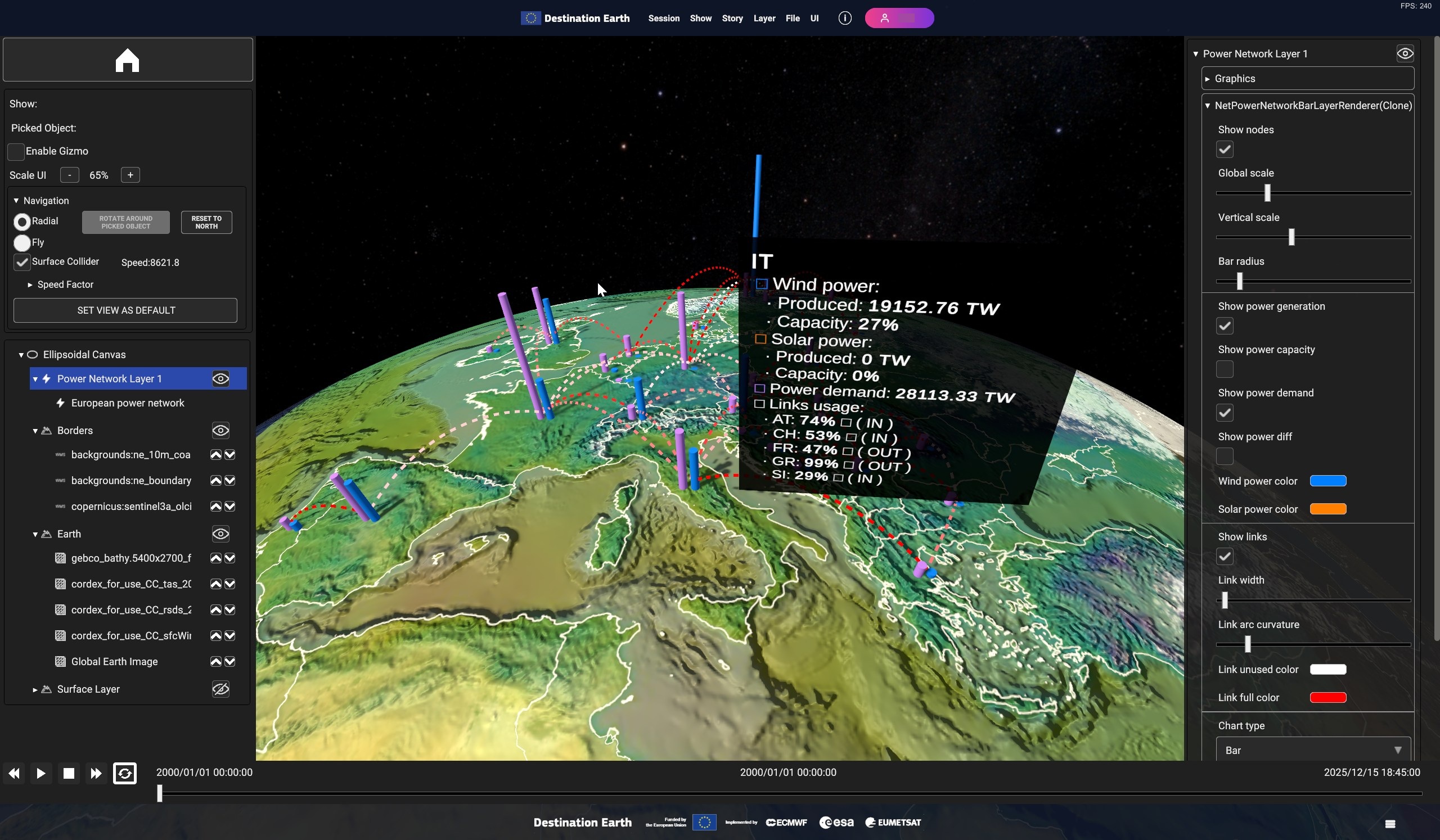
Fig. 3.7 Example of UI with a fully populated scene, with a wind rendering on the 3D Earth and the related description.
Layer UI panels, specifically Hierarchy, Inspector and Timeline panels are briefly presented in this section, but will be explained in detail in “Layer Menu” chapter. Menu Bar, Tools Panel, and Camera Panel will be delved into in the next sub-chapter.
3.2.1. Menu Bar
- The menu bar at the top provides several options grouped in submenus :
Session
Show (chapter “Shows”)
Story (chapter “Stories”)
Layer (chapter “Layer Menu”)
File
UI

Fig. 3.8 Menu Bar
3.2.1.1. Session
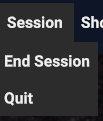
Fig. 3.9 Session
3.2.1.2. File
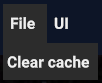
Fig. 3.10 File
3.2.1.3. UI
- The UI submenu contains options to toggle the visualization of the three UI sections:
Show/Hide Main Panel for the left side, containing Tool, Camera and Hierarchy Panels
Show/Hide Inspector Panel for the right side containing the Inspector Panel
Show/Hide Timeline for the bottom side containing the Timeline Panel
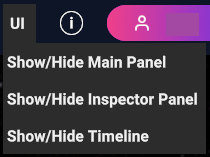
Fig. 3.11 UI Menu
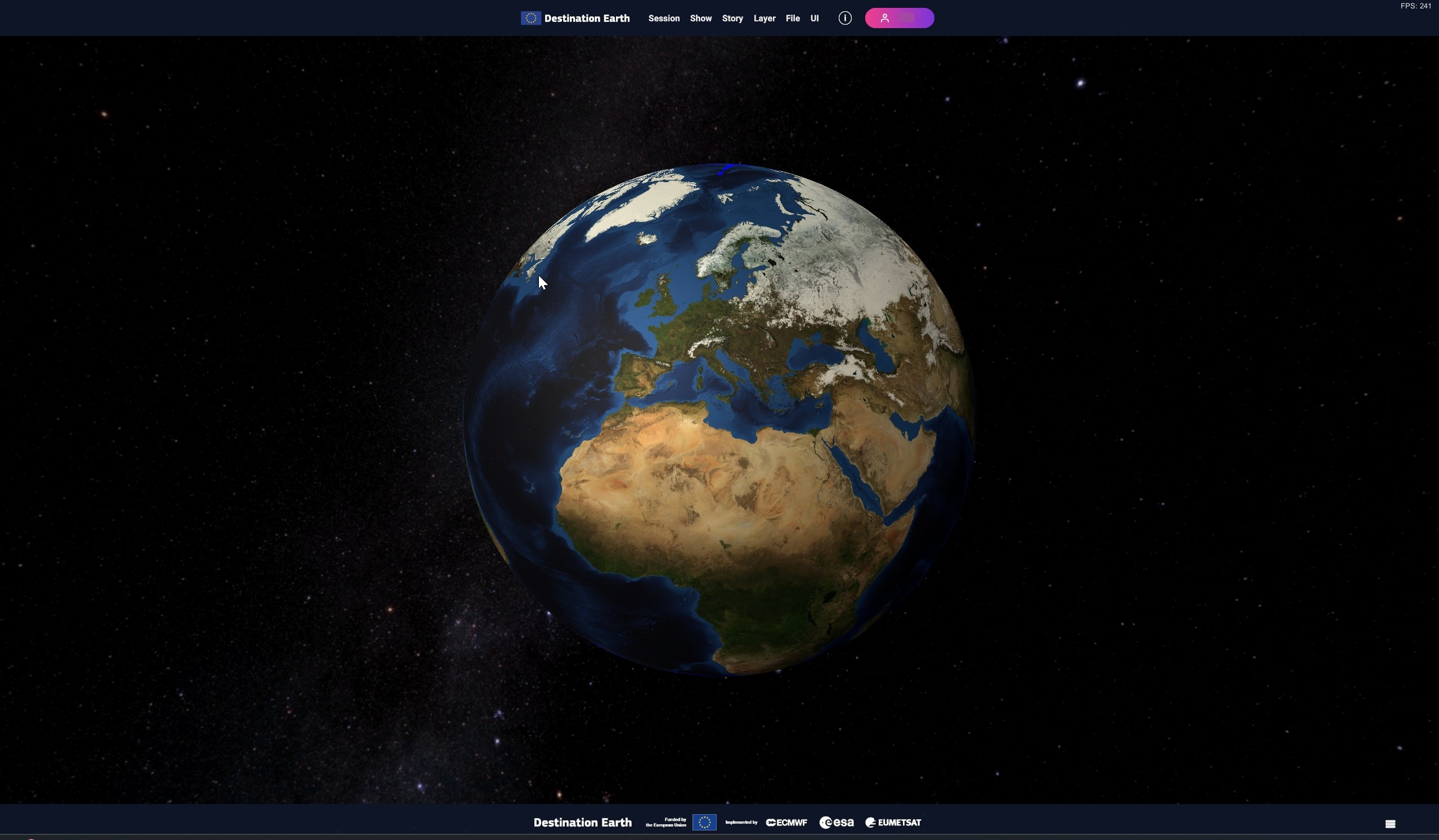
Fig. 3.12 View with all the UI hidden
3.2.2. Tools Panel
The Tools Panel on the left side, provides several visual options.
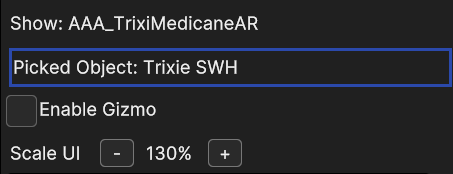
Fig. 3.13 Tools Panel
If available, the current show name and the currently selected 3D object (“Picked Object”) are displayed. Enable Gizmo shows the bounding boxes of layers and data sources in the 3D scene, while Scale UI allows to change the size of the UI. You can also use the keyboard shortcuts to scale UI:
CTRL + “.” Or CTRL + “+” increase UI size
CTRL + “,” or CTRL + “-” decrease UI size
The selected size is retained on app reboot.
Check “Enable Gizmo” and select a layer to adjust the boundaries. You can do it by dragging the handles for cropping (works for data sources of surfaces layers and volume layers).
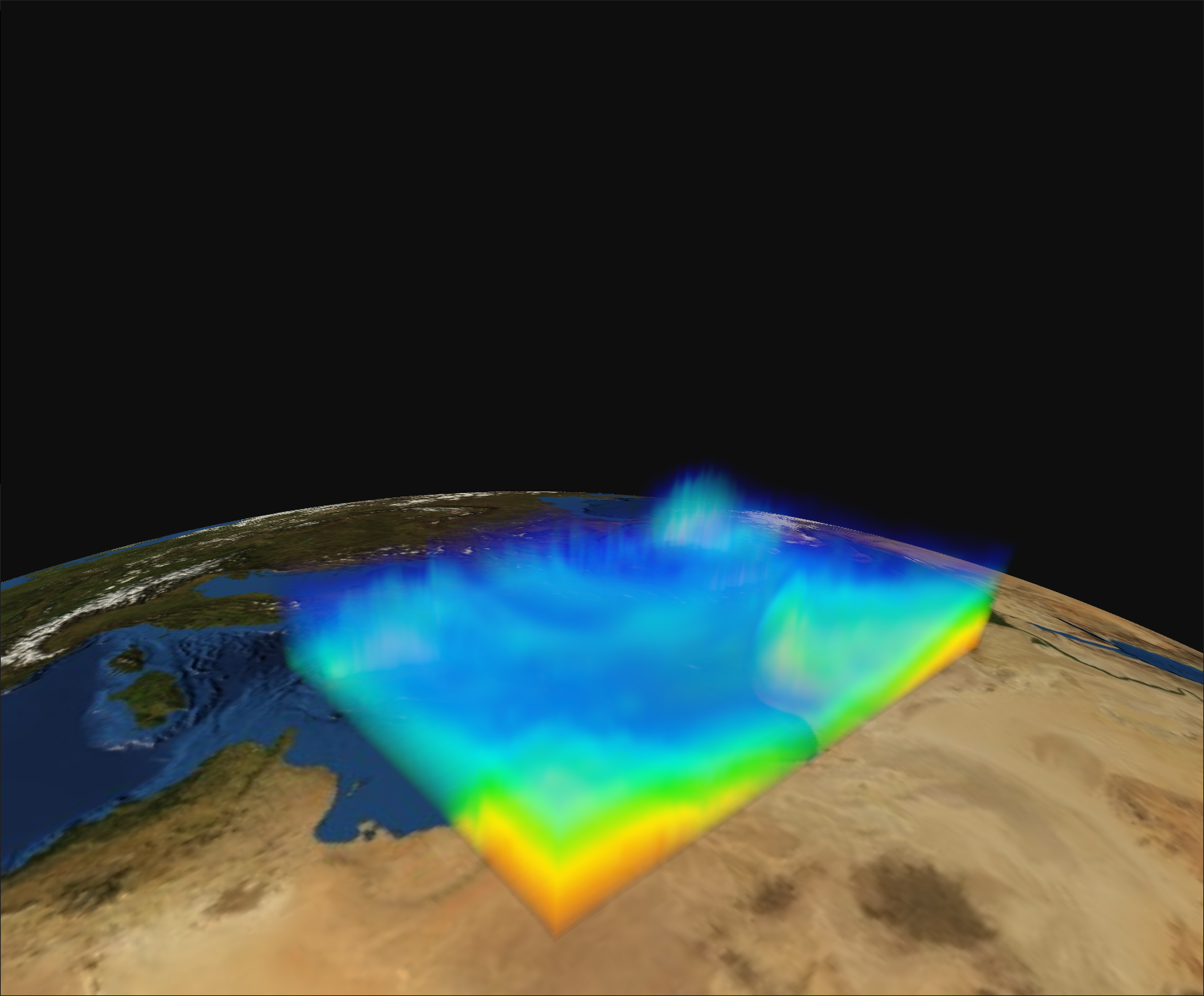
Fig. 3.14 A volume layer (temperature volumetric dataset of Ianos Medicane) |
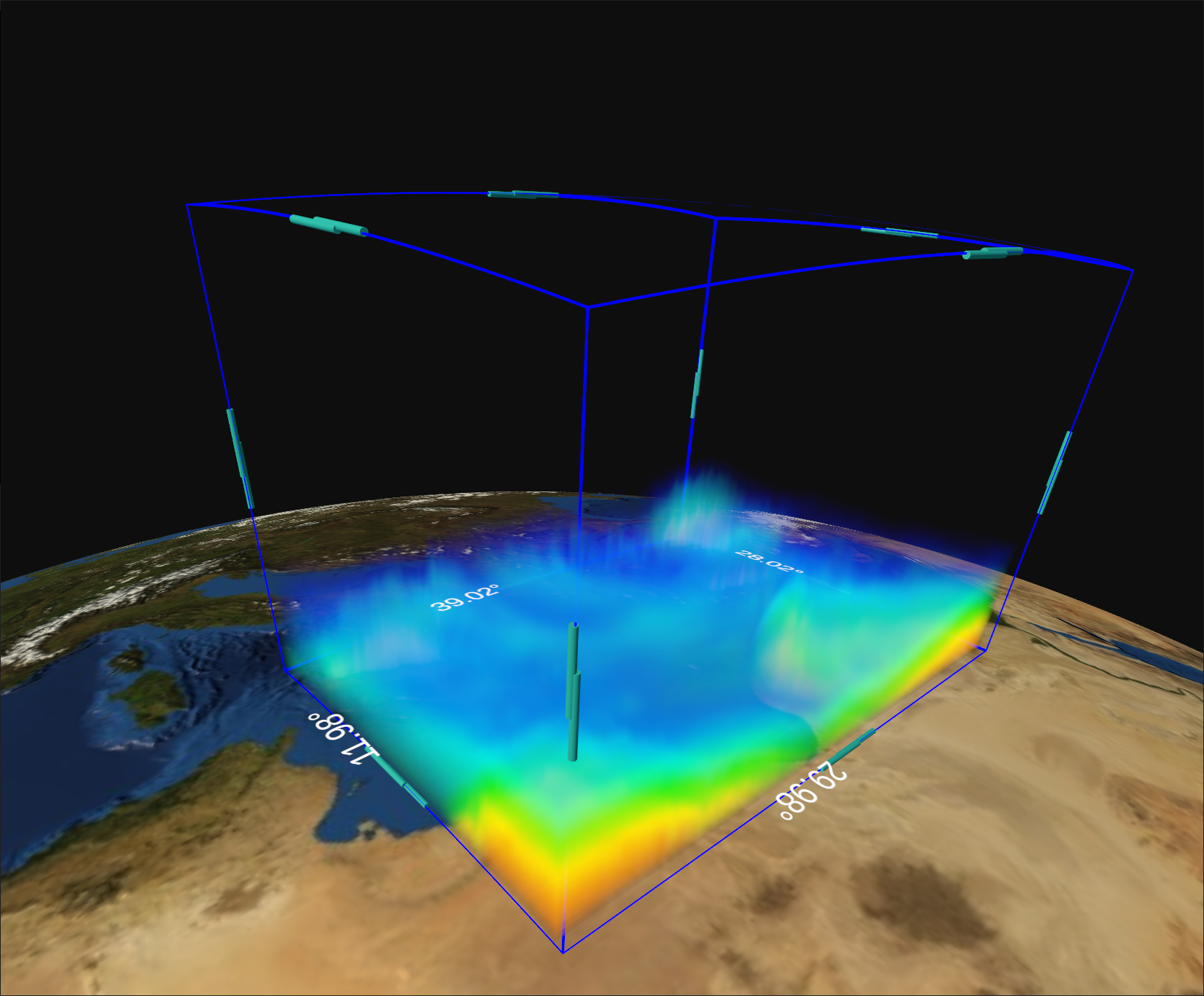
Fig. 3.15 Draggable handles of the bounding box of a volumetric dataset (Ianos Medicane) |
3.2.3. Camera Panel
Below the Tools Panel is the Camera Panel to help the user with the navigation in the 3D view.
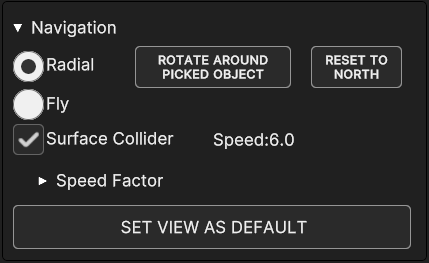
Fig. 3.16 Camera Panel
The collapsible settings are below the label “Navigation”. | User can move the camera inside the 3D scene through a Radial navigation or a Fly navigation.
- A quick overview of the options provided in this panel.
Radial and Fly radio buttons enable the respective navigation mode. With radial navigation the camera rotates around a 3D pivot point, while in fly navigation the camera movement is free.
Radial mode comes with two extra options.With ROTATE AROUND PICKED OBJECT button, the bounding sphere of the current selected object is set as rotational pivot. If no object is selected the button is disabled. By default, the Earth center is the default pivot point.
With RADIAL NORTH button, camera orientation is reset toward the North.
Notice that both buttons are disabled with fly mode on.
Surface Collider checkbox toggles the camera collision with the bounding volumes of the objects in the scene. When toggled off, camera can go forward to the pivot point without limitations. The checkbox has to be enabled when rotating around the Earth so the camera can go forward until it reaches the surface, stopping at the Earth bounding sphere.
Speed shows the current camera movement onward/backward speed.
Speed Factor collapsible panel (collapsed by default) contains three speed parameters
Move for the translation speed of the camera
Rotate for the rotation speed of the camera around an object
Tilt for the rotation speed of the camera field of view around itself
SET VIEW AS DEFAULT set the current camera position and orientation as default, so that the camera is set back to those values upon reset. Those values are stored in the show information, which means that if the show is saved, the file will keep the camera values, and those values will be restored when the show is loaded.
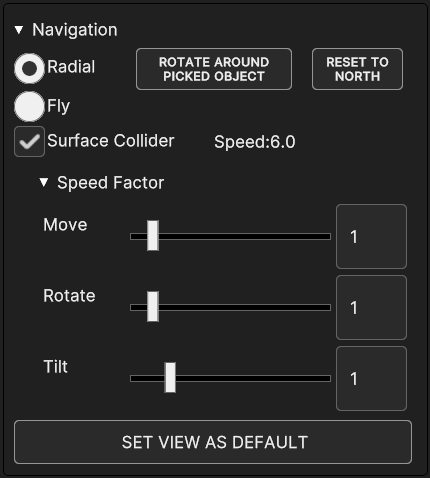
Fig. 3.17 Camera Panel with Speed Factor options expanded
3.2.3.1. Camera Controls
The camera can be controlled through keyboard and mouse controls. Commands behave differently depending on the navigation mode. Here is a list of controls for both the modes.
- Radial Navigation controls
Move On/Backward (Zoom In/Out): mouse wheel - W/S keys;
Rotate: mouse left click and drag - A/D keys - Up/Down/Right/Left Rotate arrows;
Tilt Up/Down: mouse right click and drag;
Roll Left/Right: mouse middle click and drag - J/L keys;
Reset camera position: Spacebar key.
- Fly Navigation controls
Move On/Backward: W/S keys;
Increase/Decrease move speed: mouse wheel;
Rotate Point of View: mouse left click - A/D keys;
Roll Left/Right: mouse right click - J/L keys;
Tilt Up/Down (pitch): Up/Down arrow keys;
Pan Left/Right: Left/Right arrow keys.