User Guide
This page explains how to run an analysis in CONOPS using the web application.
Open CONOPS and sign in
Open CONOPS from the DestinE Services catalogue.
Click Sign in and complete authentication.
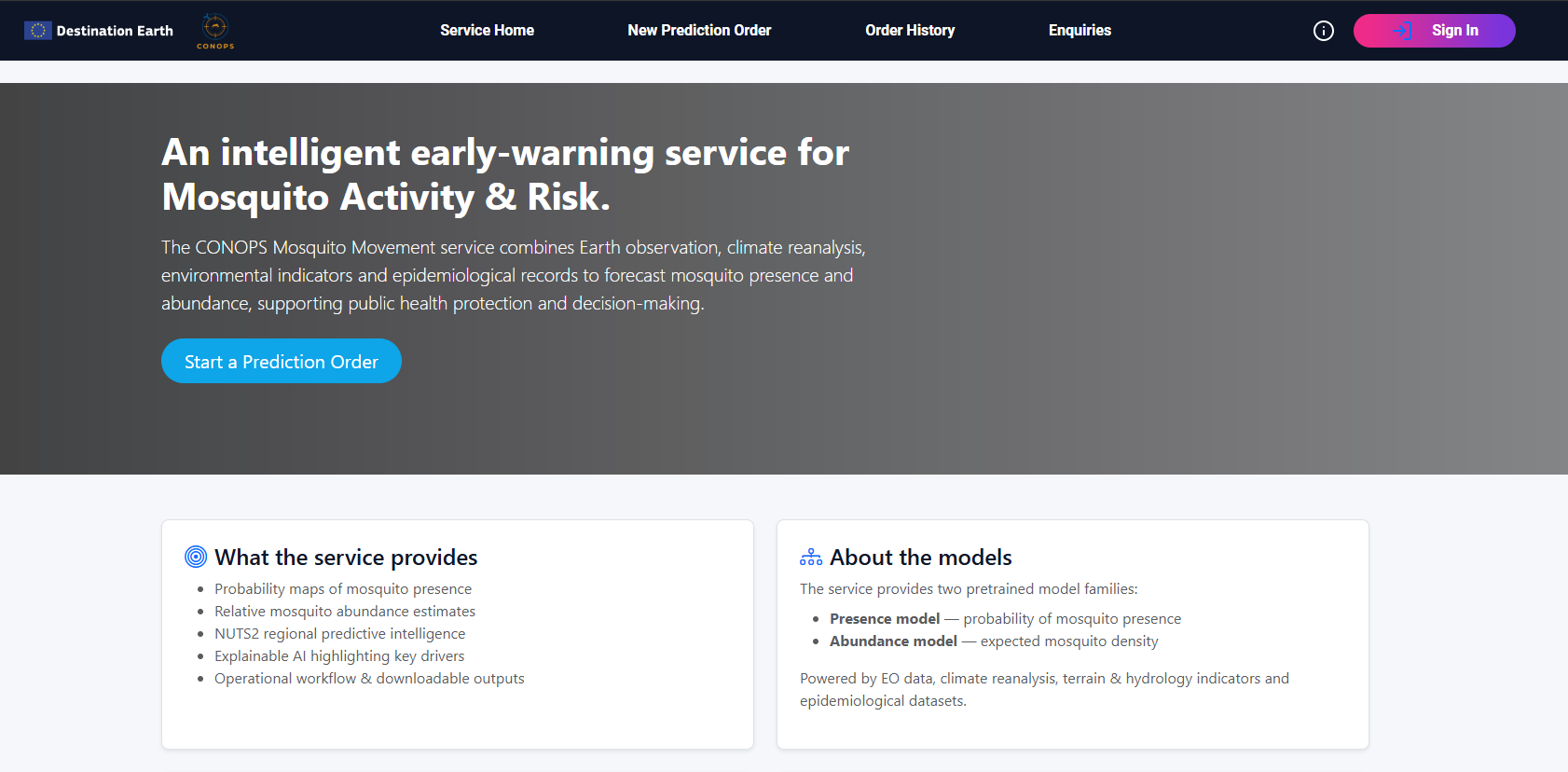
Press the New Prediction Order on the CONOPS entry page after sign-in.
Order a Prediction
CONOPS analyses are always run for a specific Area of Interest.
How to select the AOI
The UI provides NUTS1/2/3 regions that are available from the dropdown menus.
Select a time period
Choose the time period for the analysis:
Monthly: recommended for standard workflows.
Custom range: use when you need a specific interval (if supported by the UI).
Model selection
CONOPS provides the following models to run analyses via the corresponding dropdown menu:
MAMOTH: mosquito abundance indicators
DVI: mosquito-borne disease risk indicators
Click Run / Submit to create an order.
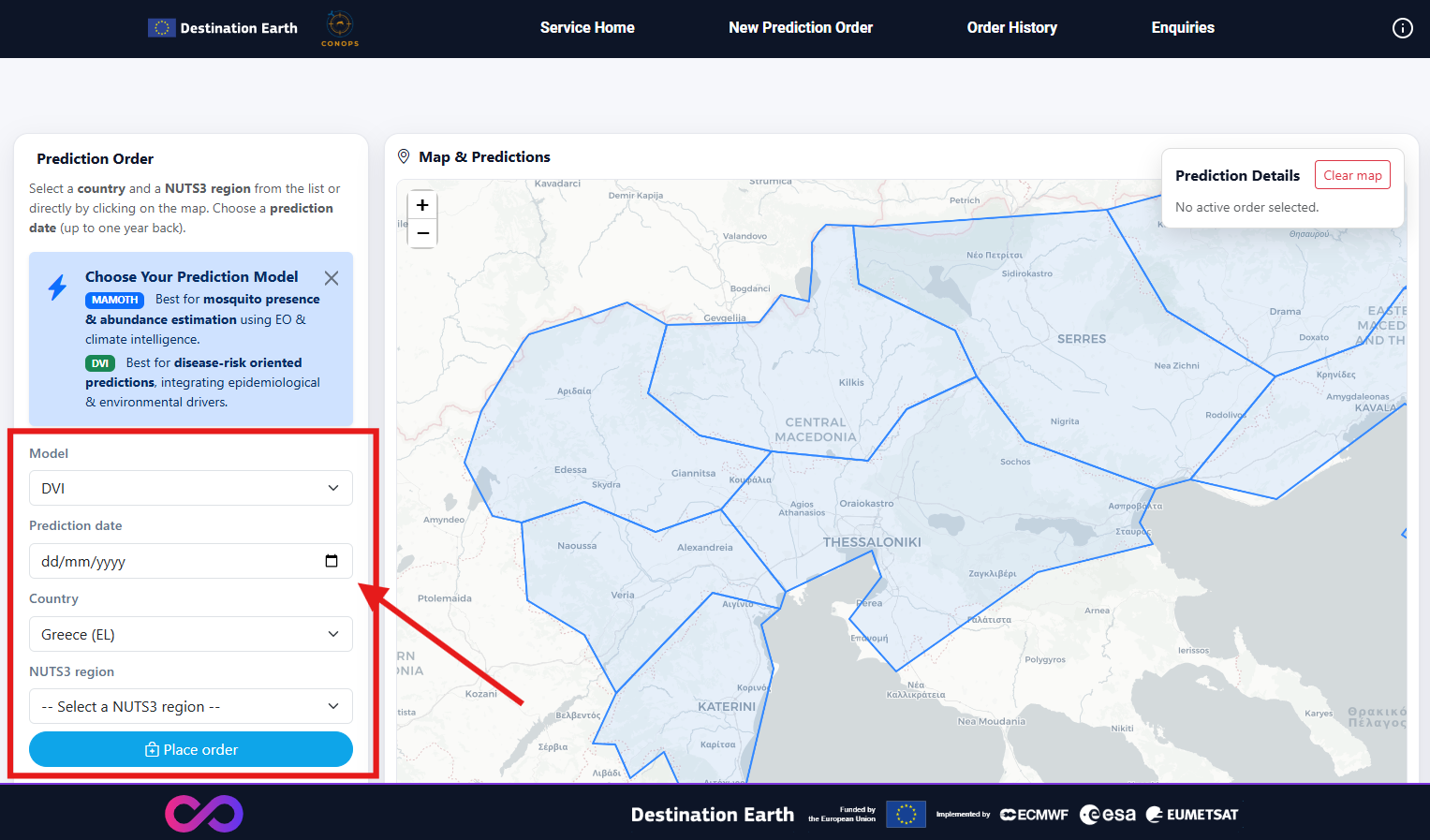
Choosing prediction’s parameters and submitting the order.
Notes
Analyses are typically meaningful during the mosquito season (e.g., May–December, depending on region).
If your selected period has no data coverage, the order may return empty/limited results.
Depending on the selected AOI size and time period, processing may take from minutes to hours.
Prediction orders can be asked for back in time up to one year from the current date.
Track an order
After submission, an order appears in the Orders/Jobs view.
Typical states are:
Queued
Running
Completed
Failed
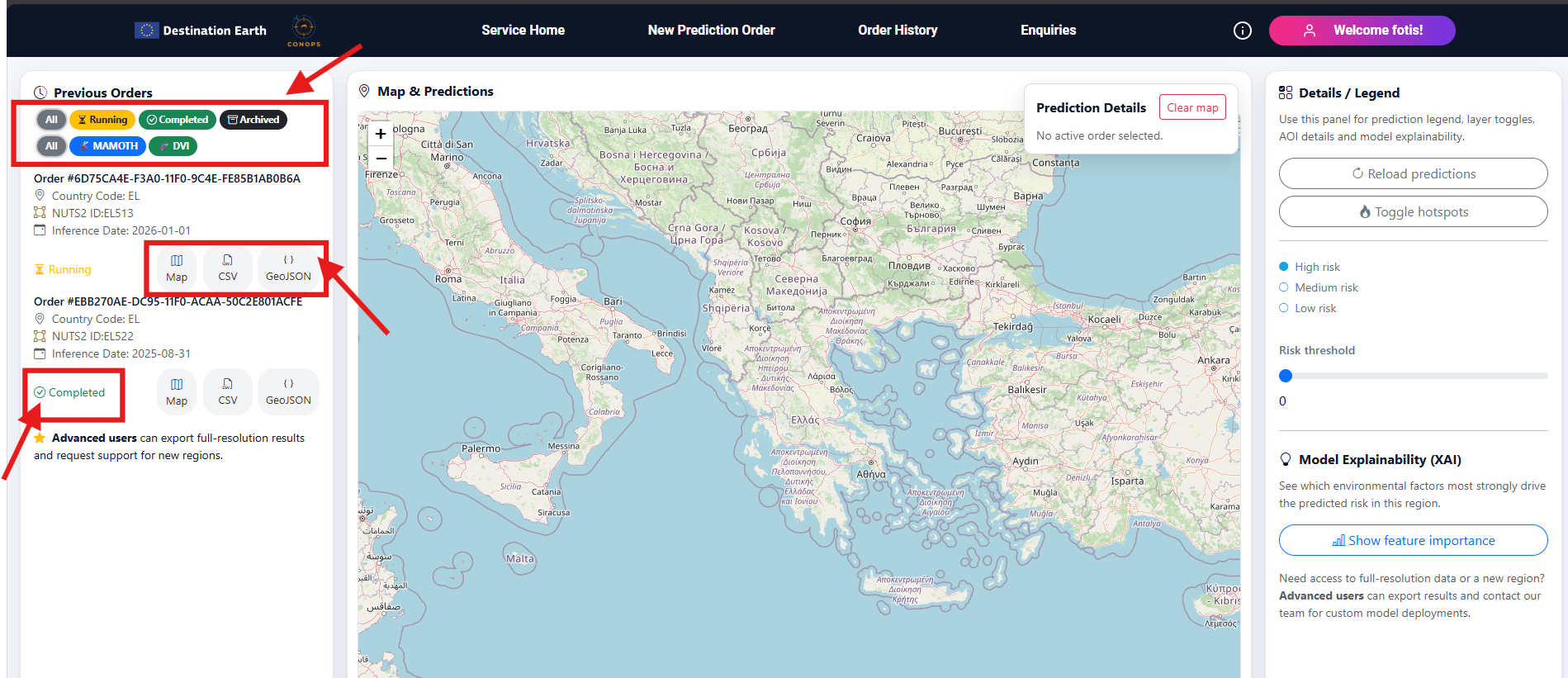
Filters, orders details, order status and visualization/export options.
If an order fails, see FAQ.
View results
When an order is Completed, open the Results view to explore:
Map layers and legend
Any available charts / summaries
Explanation / quality layers (if provided)
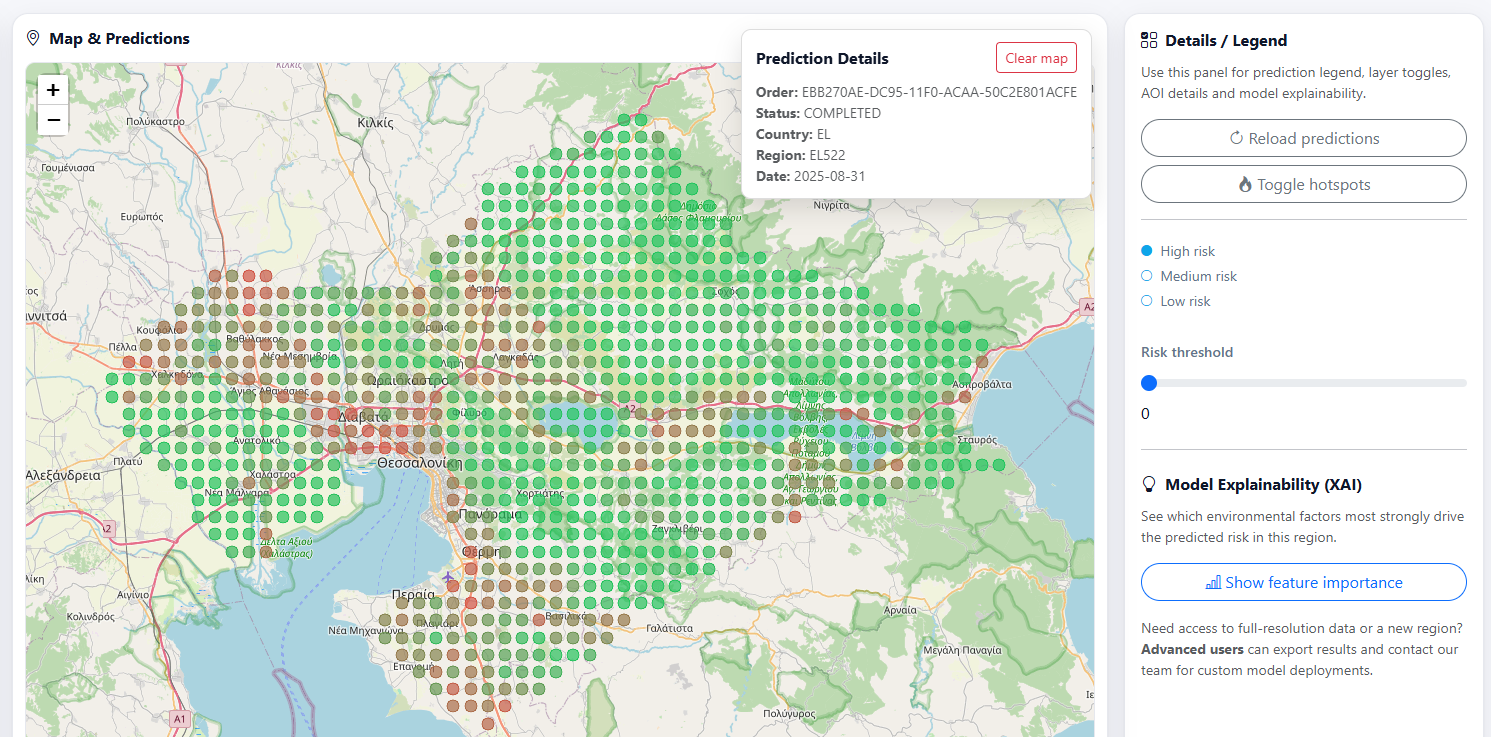
Viewing results.
Download / Export results
To download outputs (GeoJSON/CSV), use the Download/Export action in the Results view.
See Exporting and Downloading Outputs for formats, naming conventions and GIS usage.
Training enquiries
Navigate to Enquiries to submit a request for training/support for new geographical areas. Complete the form and submit the enquiry.
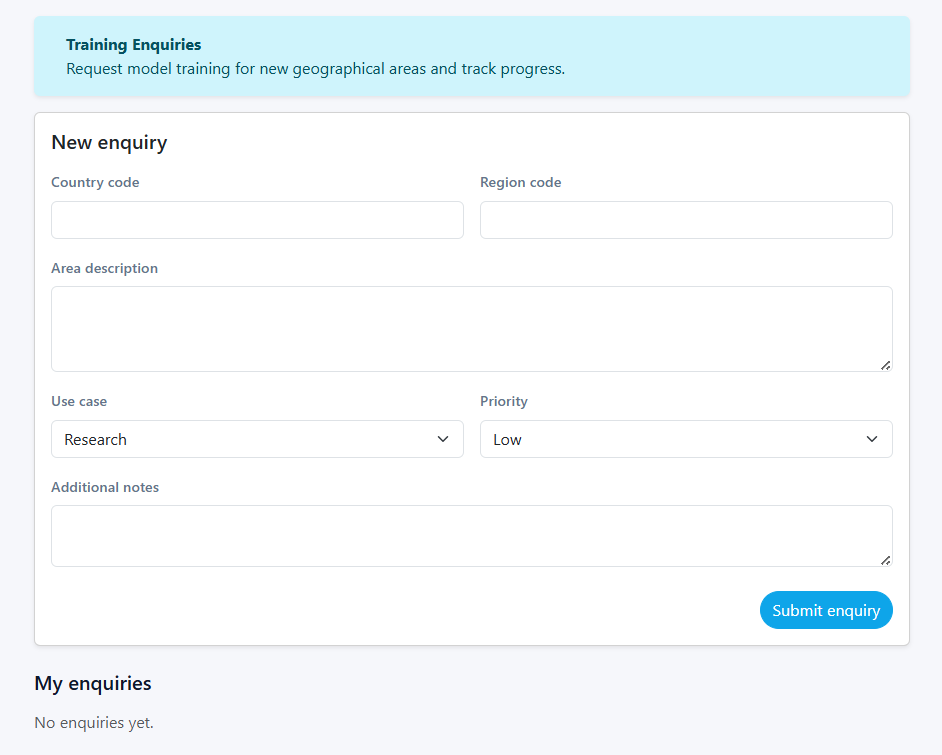
Enquiries page used to request training for new areas and track submitted enquiries.