DEA Components
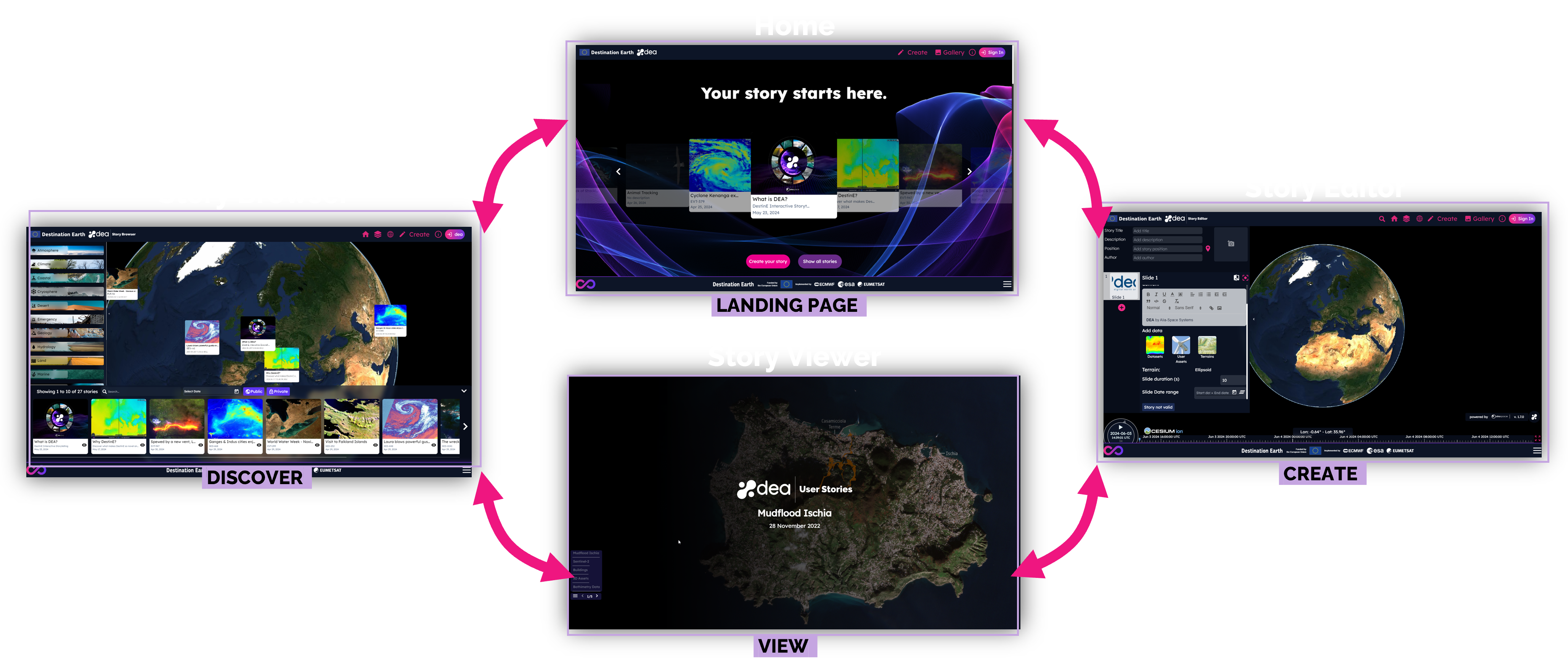
DEA is made up of different components:
The Story Browser contains the list of the public and users’ stories. The available stories are displayed on the globe as interactive placeholders that can be filtered by categories and other properties
The Story Editor allows users to explore, add and combine data on the 3D globe, both from their own storage and the one hosted on DEA. Here users can create stories enriching data with text and by grouping contents in slides
The Story Viewer contains the story details as an interactive slideshow with time dependent data. Here users can navigate the slides, explore their scenes by a direct interaction with the 3D map and read their content
All these components are accessible through the DEA Landing page.
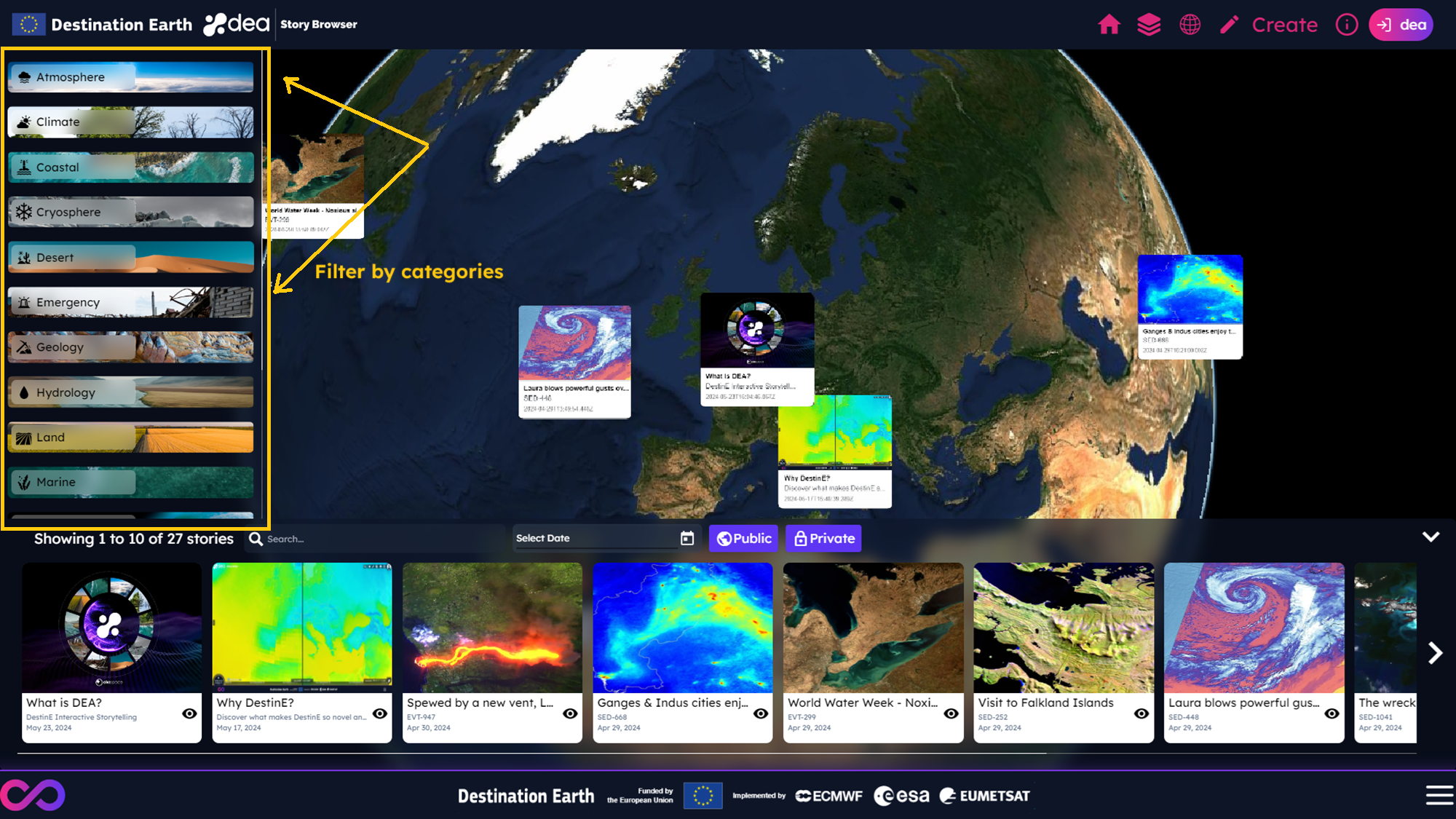
How to search stories
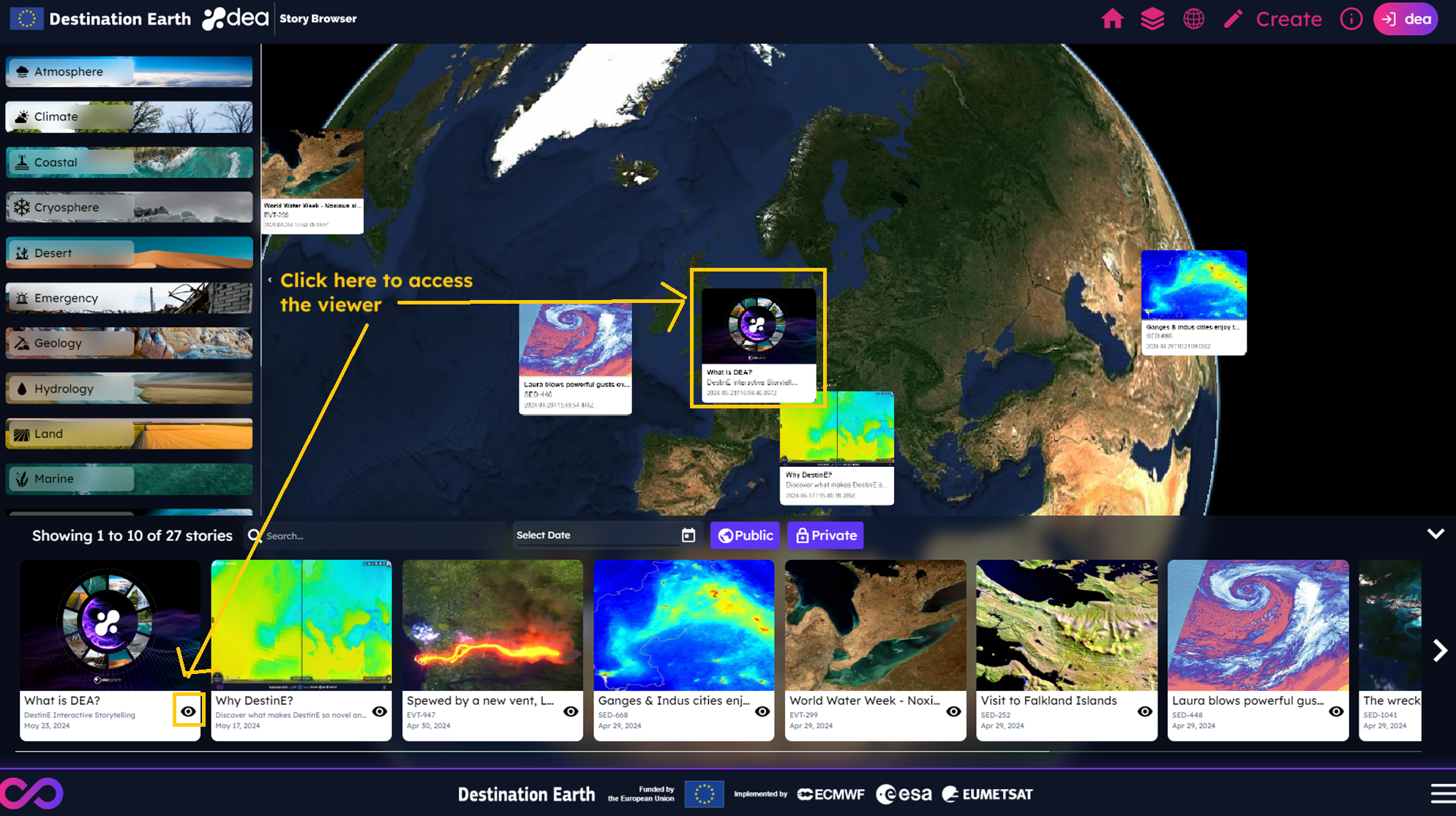
In the DEA Story Browser, the user can filter the stories by categories by selecting one or more items from the list as shown in the picture below.
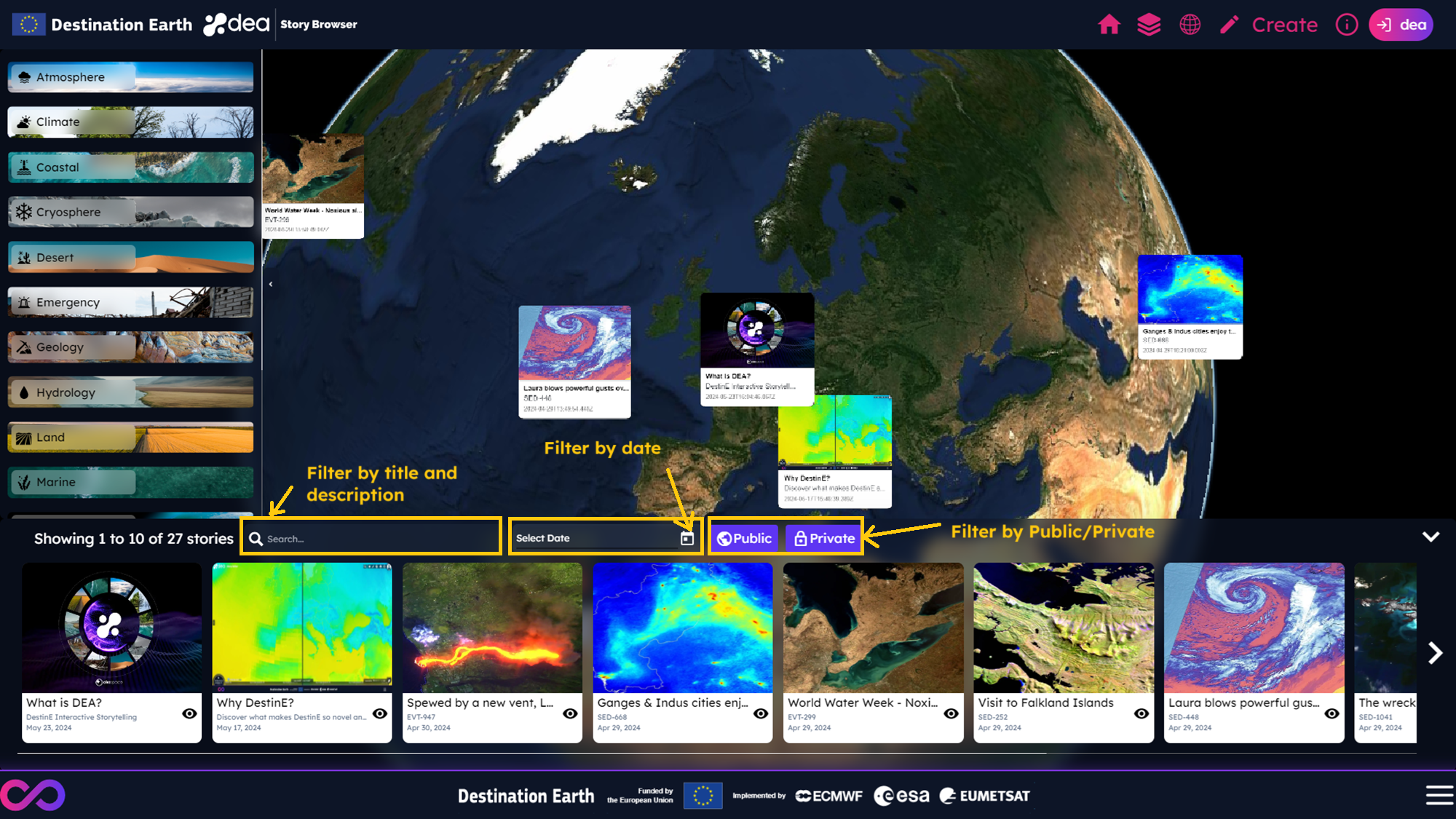
The user can also filter the stories by:
Title and description, by adding a text in the proper search bar
Creation date, by selecting a range date from the date picker
Ownership, by clicking on
Publicand/orPrivatebuttons to display only public stories and/or user-own ones
How to view stories
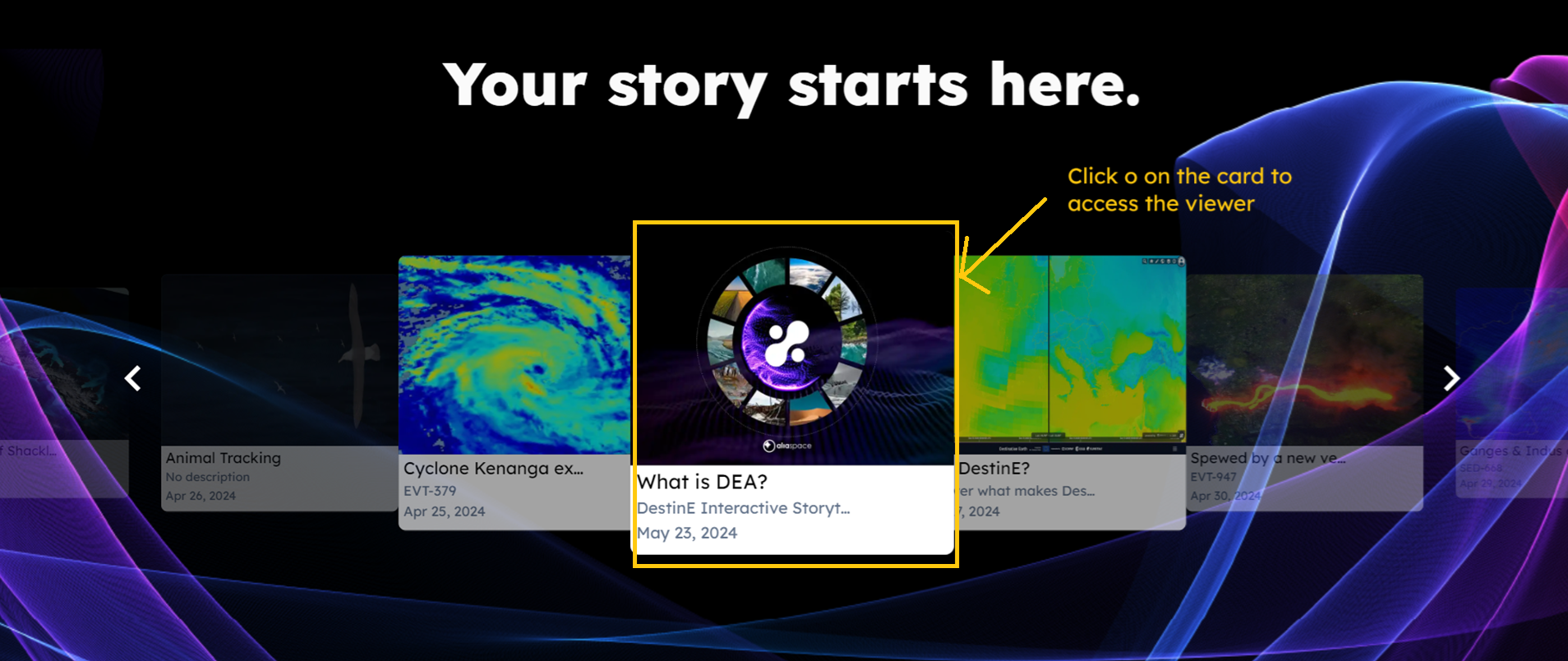
The user can access the Story Viewer in the following ways:
From the DEA Landing page, by clicking on a story from the gallery preview
From the Story Browser, by clicking on the show icon that belongs to the story item or by clicking on the story placeholder on the map
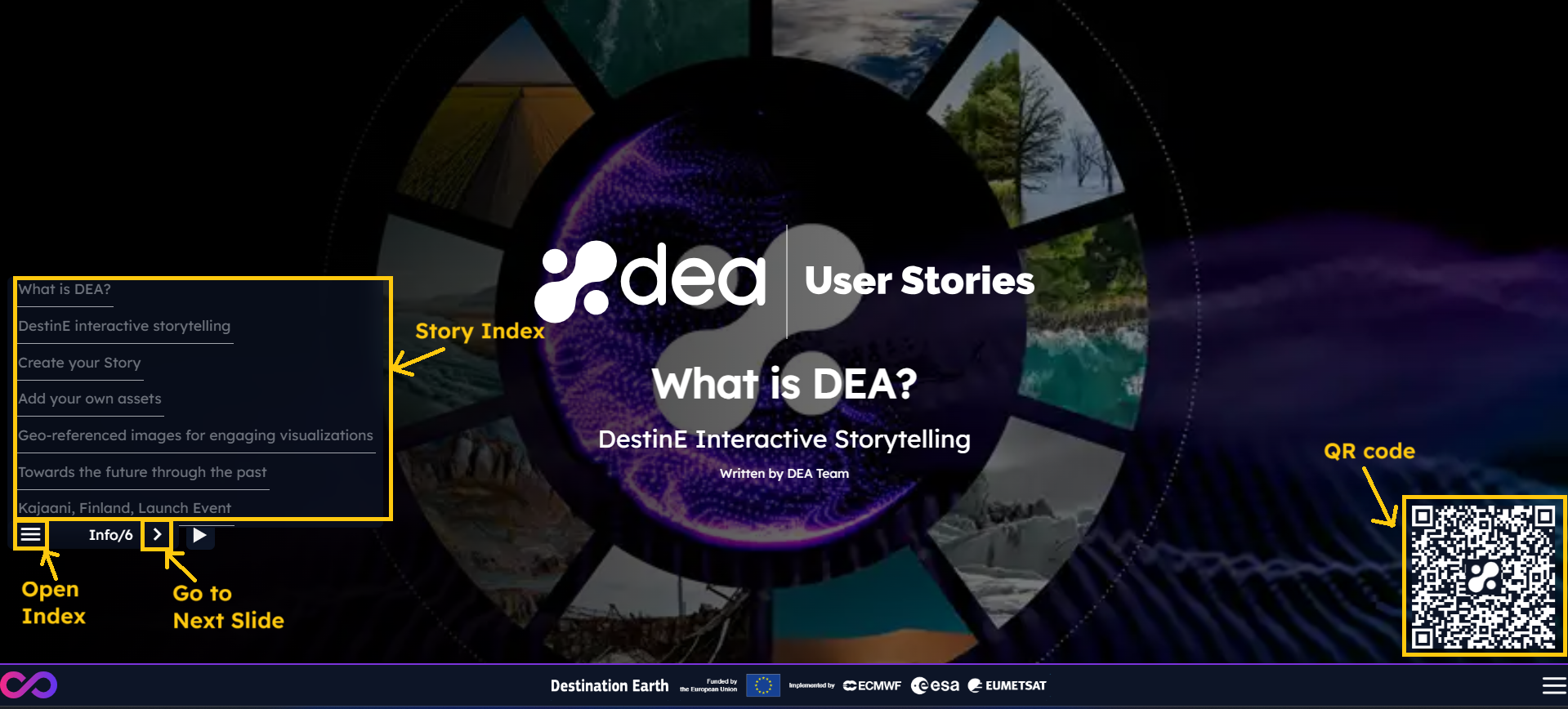
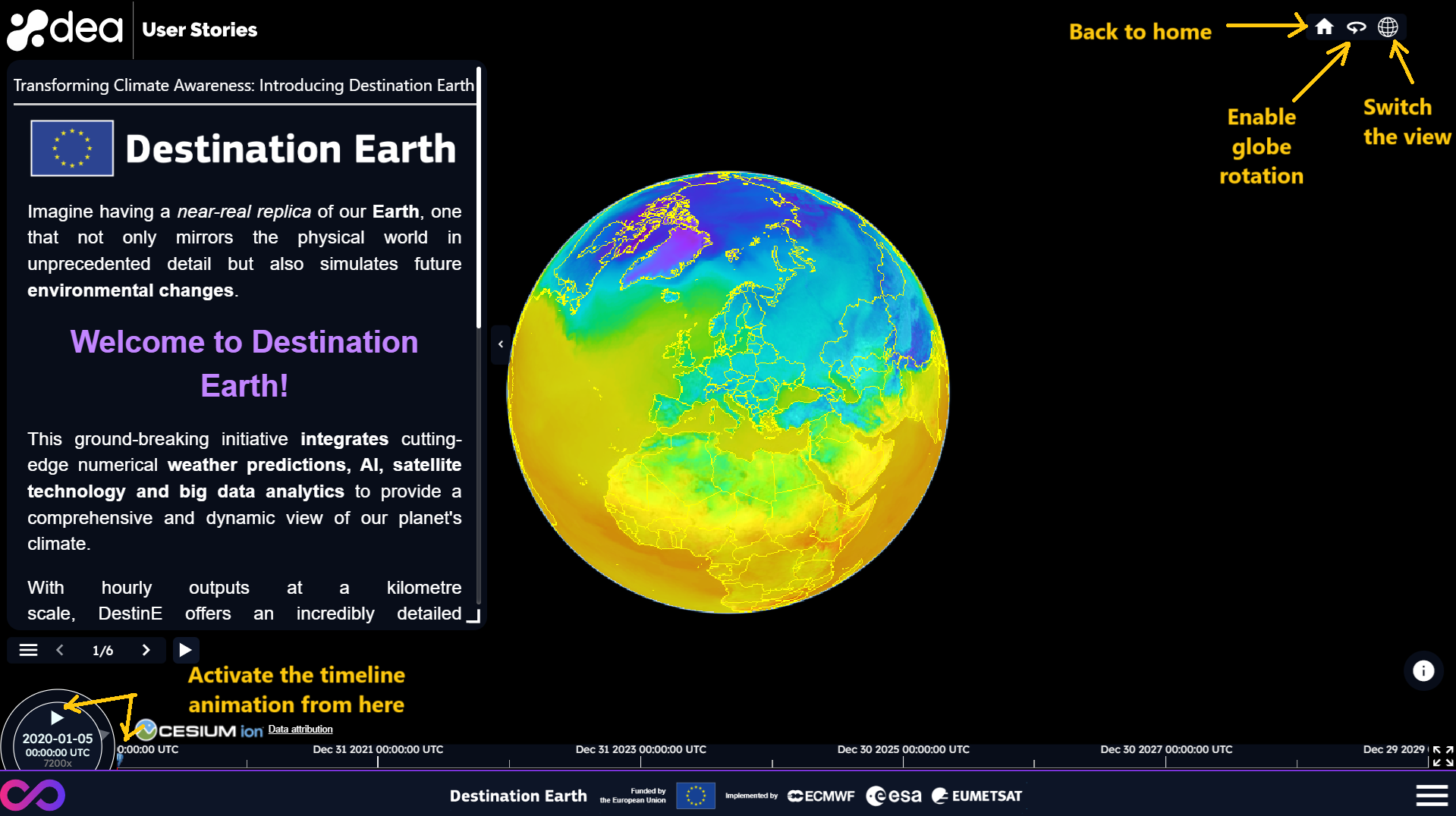
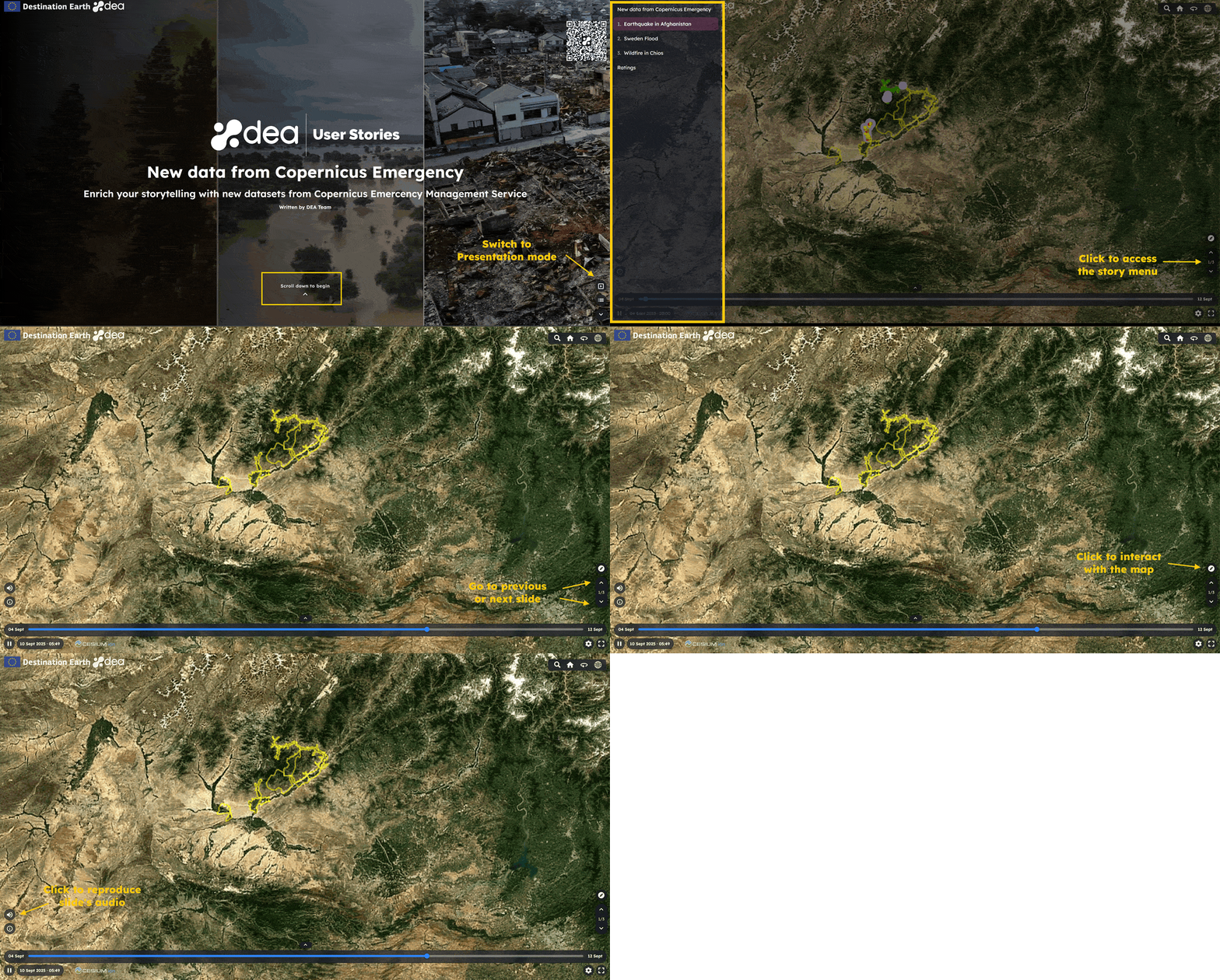
Use the indications shown in the pictures below to interact with the DEA Story Viewer.
 Since the DEA 1.11.0 release, users can access
 Scrollytelling mode to visualize their stories, in addition to the Presentation mode.
The Scrollytelling mode is the default one on mobile. It can be accessed also on Desktop devices from the Presentation mode by clicking on the symbol below on the story cover.
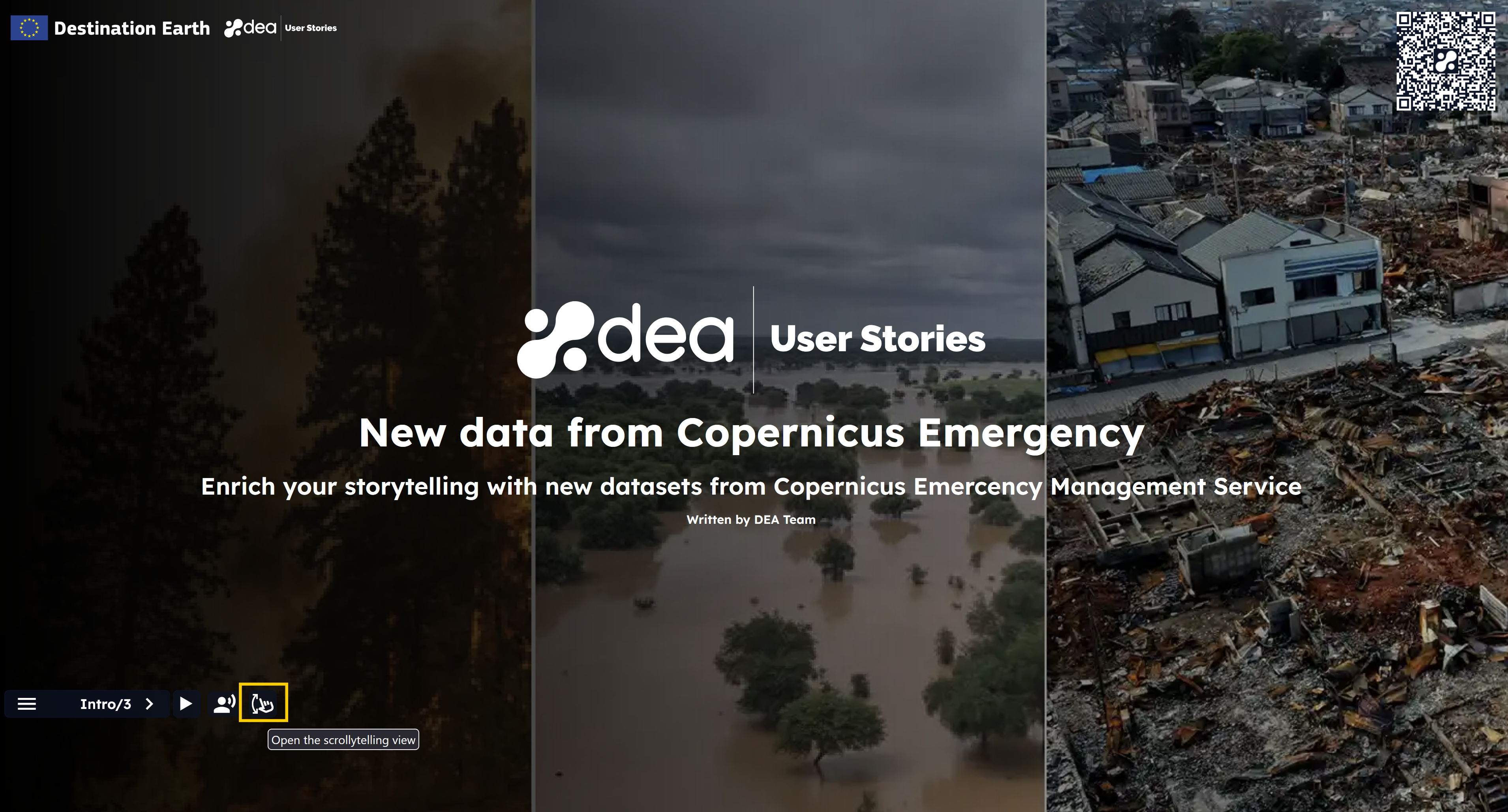
By scrolling down a story, users can access the narrative content more easily, while still interacting with the data on the map.
Stories sharing
Since the DEA 1.5.0 release, all users registered to the DestinE Platform will be able to share their stories.
For this reason, it is needed to accept our Terms of Service to:
Upload assets
Upload images and videos as story cover or slide background
Save stories
Request stories publication
Please click on the proper icon that belongs to the header (displayed on the Landing page, Story Browser and Story Editor) to visualize, read and accept our Terms of Service. An example is reported in the picture below.

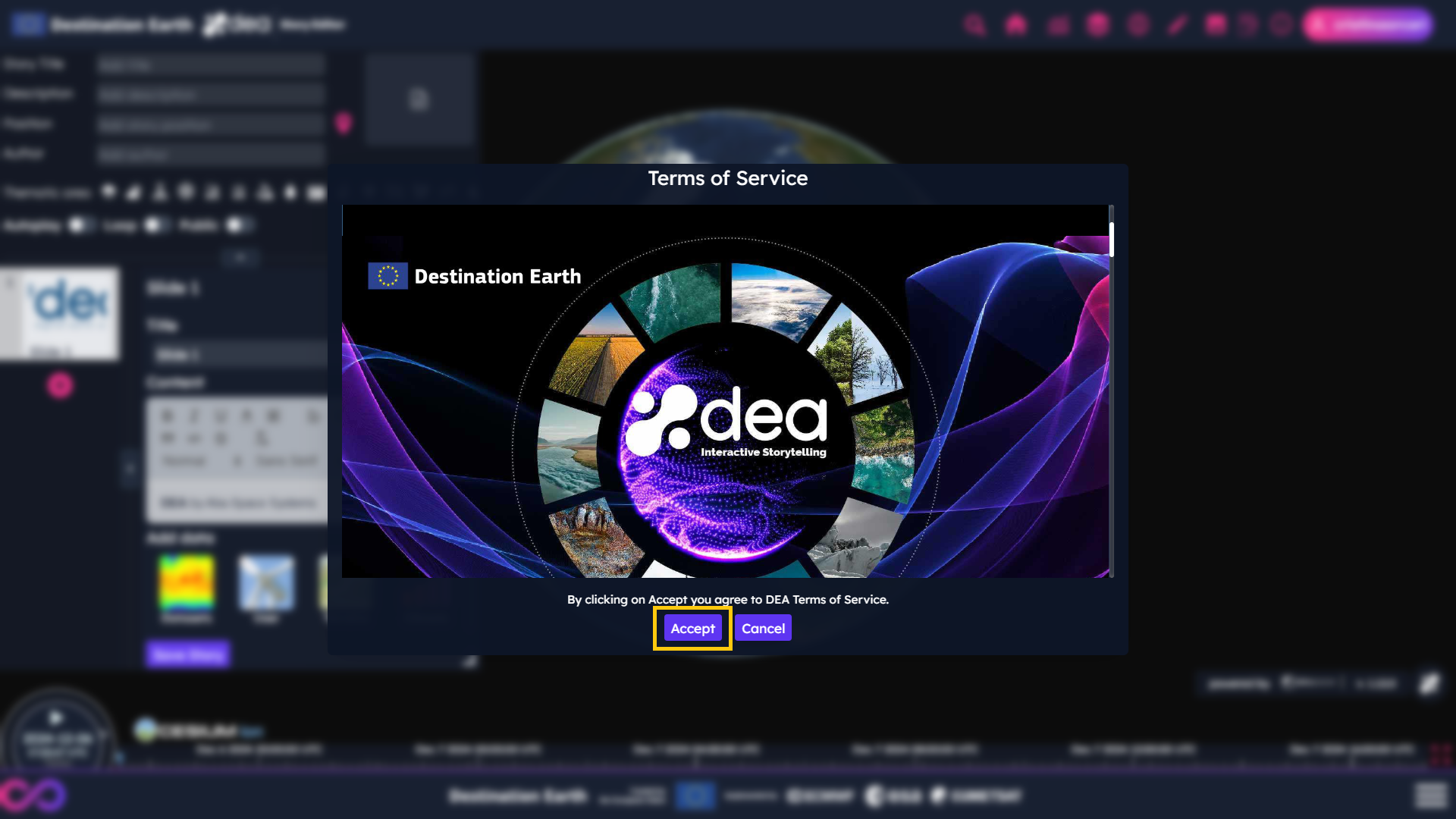
Please note that you must scroll the whole document before the Accept button appears to be enabled.
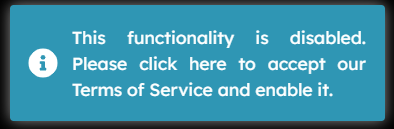
This will allow the user to create his/her own stories with his/her assets, otherwise the following message will appear on the screen when trying to perform a temporarily disabled action.
To increase the security and reliability of DEA, we use a third-party service to monitor the content provided by users. The contents subjected to this check are:
Any uploaded asset
Any added text
This tool will notify the user of any content found inappropriate. In case any issue is found when uploading the content on our service, an e-mail can be sent with related info to dea-support@alia-space.com.