Managing Stories
Share the story
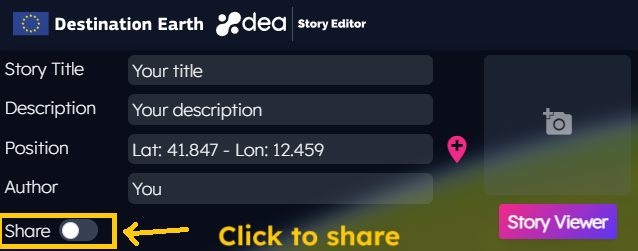
Since the DEA 1.5.0 release, any user can share the created story with the community by enabling the Share button in the DEA Story Editor.
After the story saving, the user can click on the share icon to generate the QR code or to copy the link that can be shared on social media and used to access the current story in the Story Viewer.
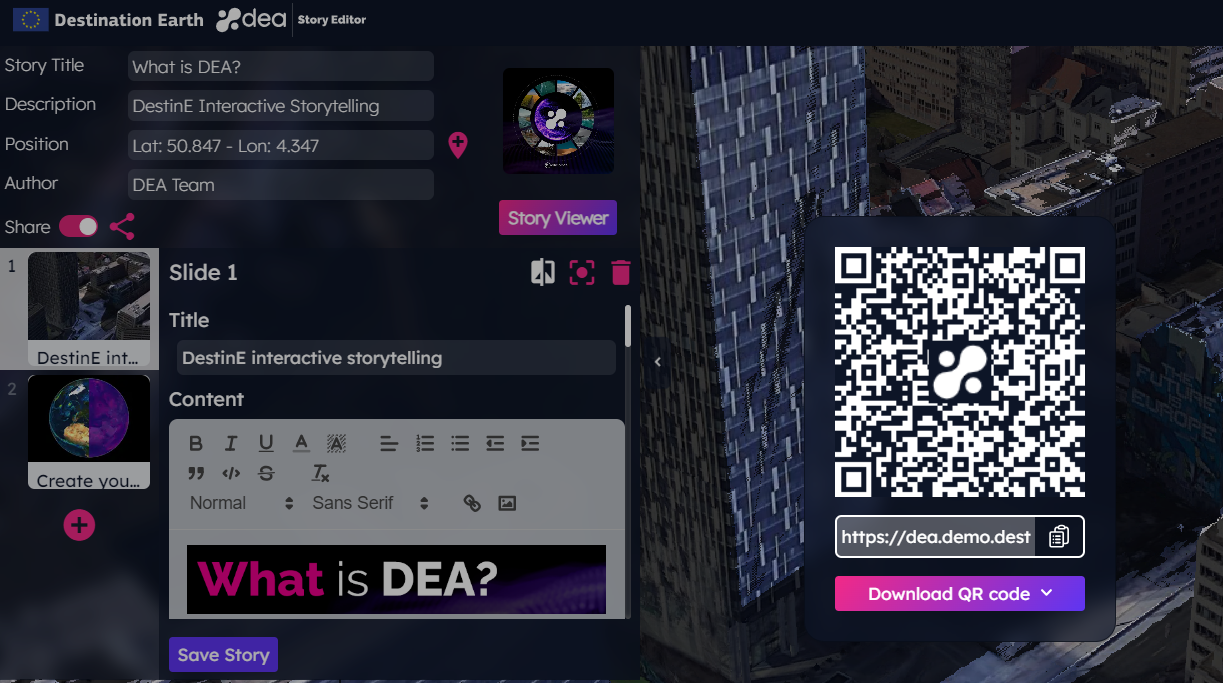
Users can reach a shared story upon authentication on the DestinE Platform.
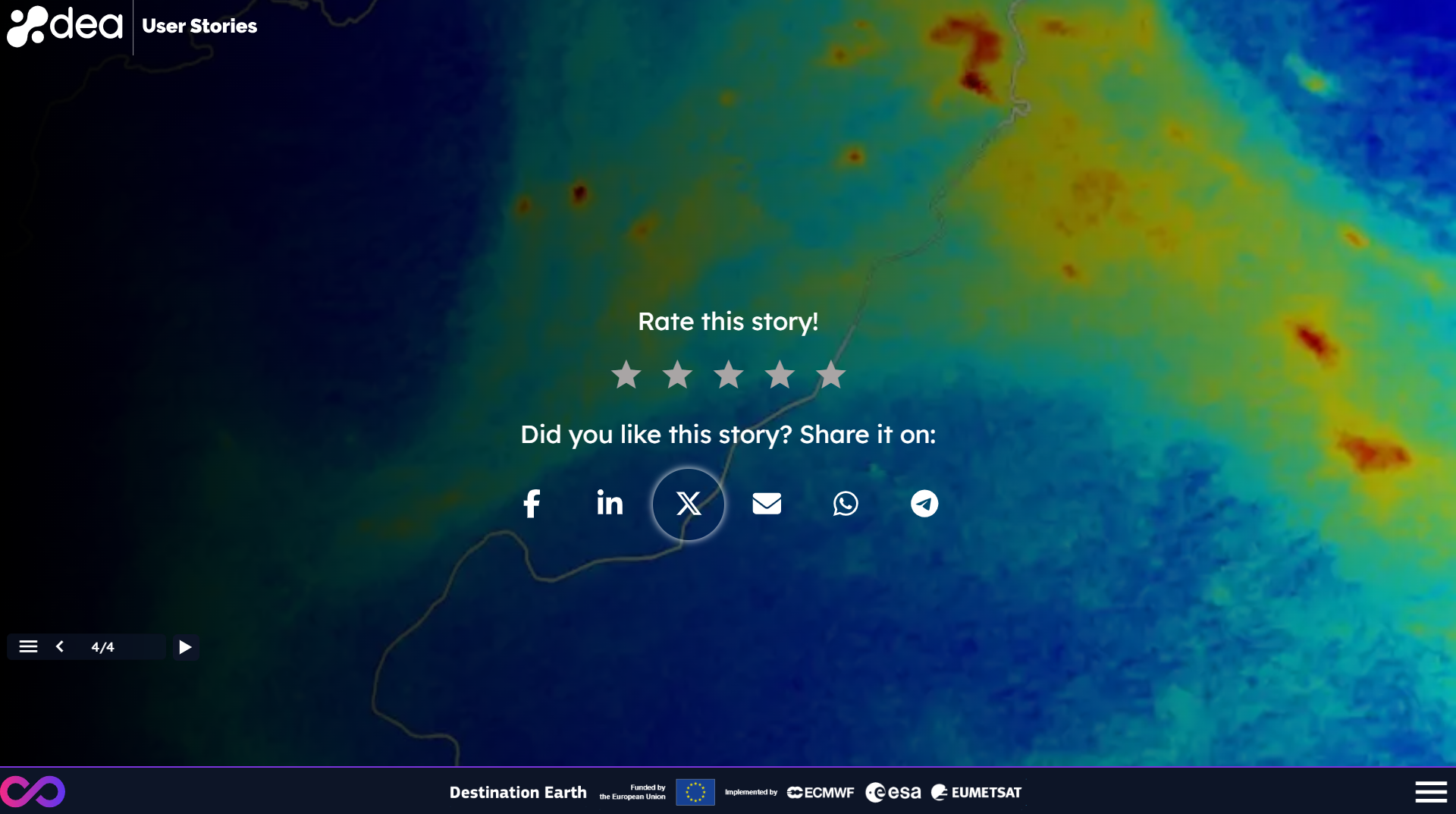
The links to share a story on the most popular social media are reported after the last slide of the Story Viewer for both shared and public stories. Here users can also find the possibility to rate the story.
Since the DEA 1.8.0 release, the visualization of the stories has been improved on mobile devices in landscape orientation.
Edit existing stories
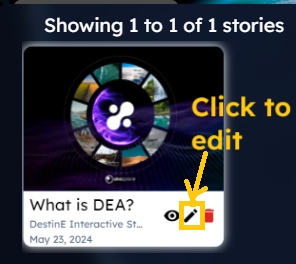
In case the user needs to edit his/her stories, it will be sufficient to click the edit icon displayed on the story item preview of the Story Browser.
Clone existing stories
Since the DEA 1.6.0 release, users can create a copy of an existing story from the Story Browser. It is suggested to change the title of the cloned story and then click on the Clone Story button.
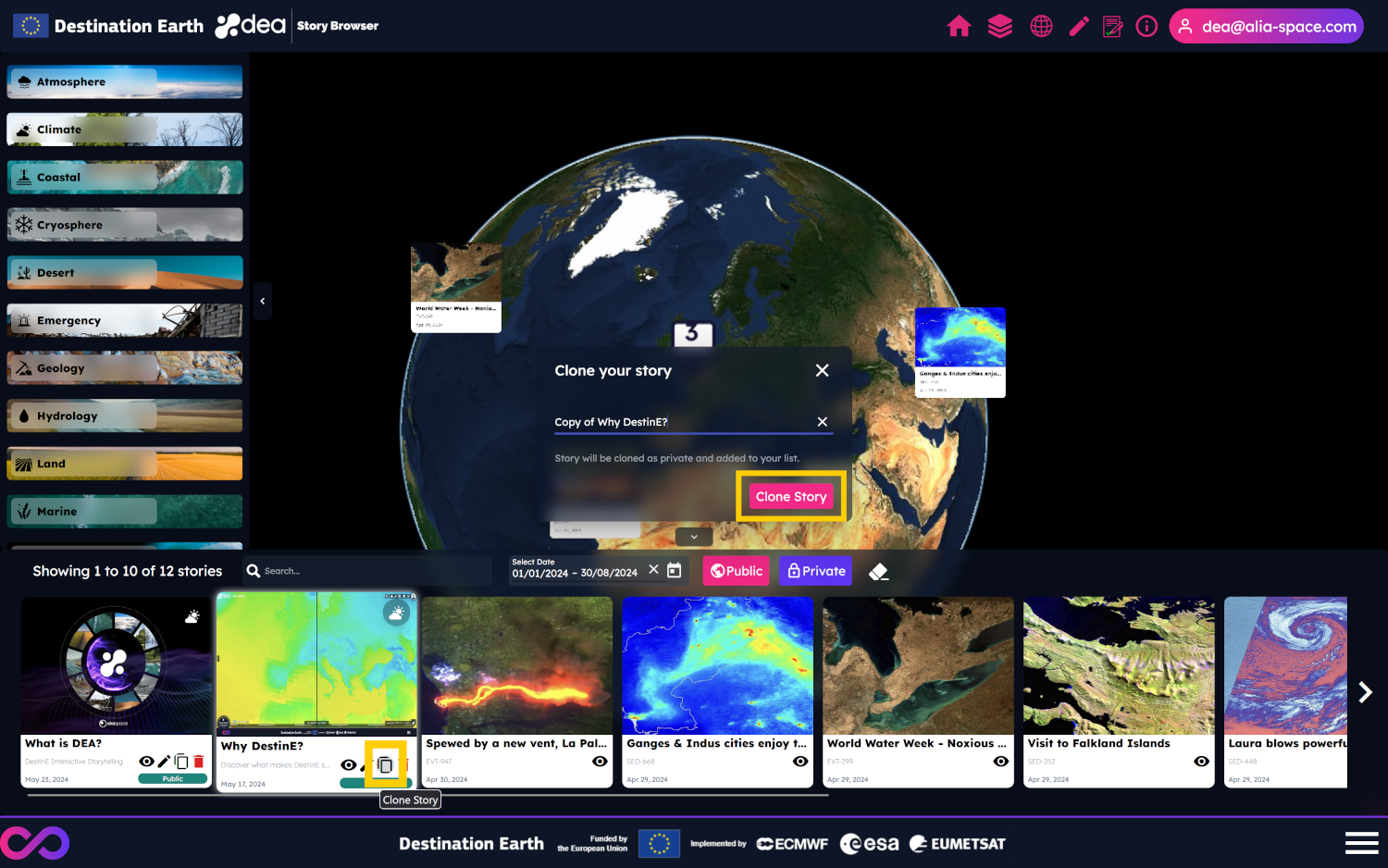
Public stories will be cloned as private stories. In this way, users can create the history of a story.
A story can also be cloned from the Story Editor by clicking on the dedicated icon.
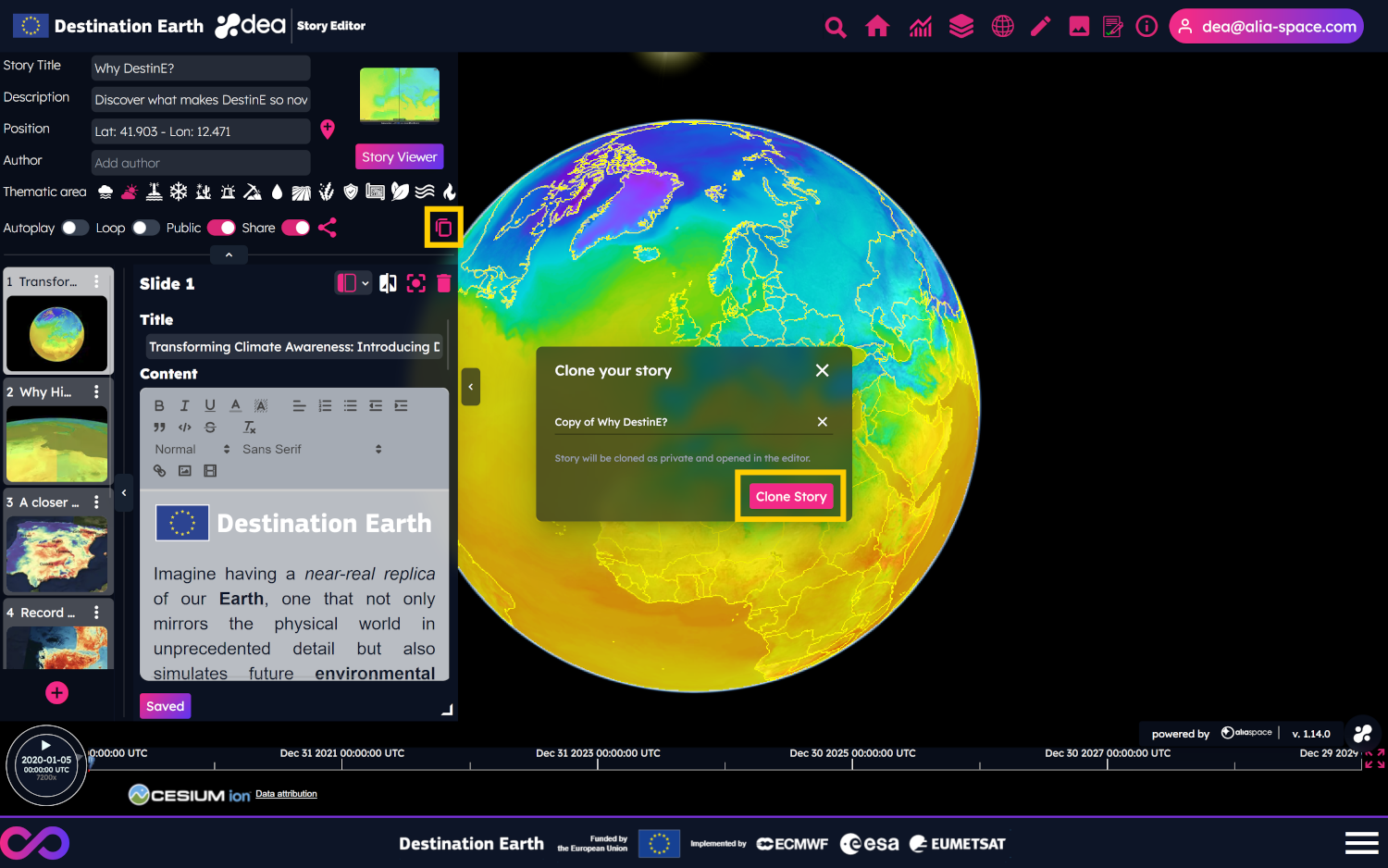
The cloned story is loaded in the Story Editor once created.
Audible stories
Since the DEA 1.6.0 release, users can reproduce the audio of your stories, thanks to the OVH AI Endpoints.
By clicking on the button shown at the right of the story menu, the text of the slide will be translated into voice.
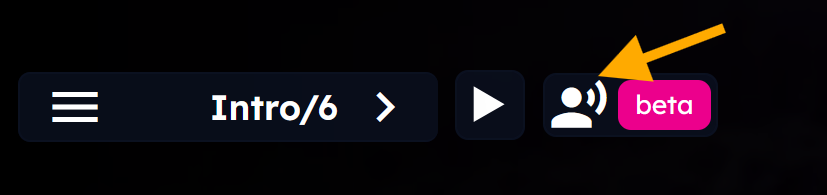
Please note that this feature is in a beta version and could have limitation in the size of the text to translate.
The supported languages are:
English
Italian
Spanish
German
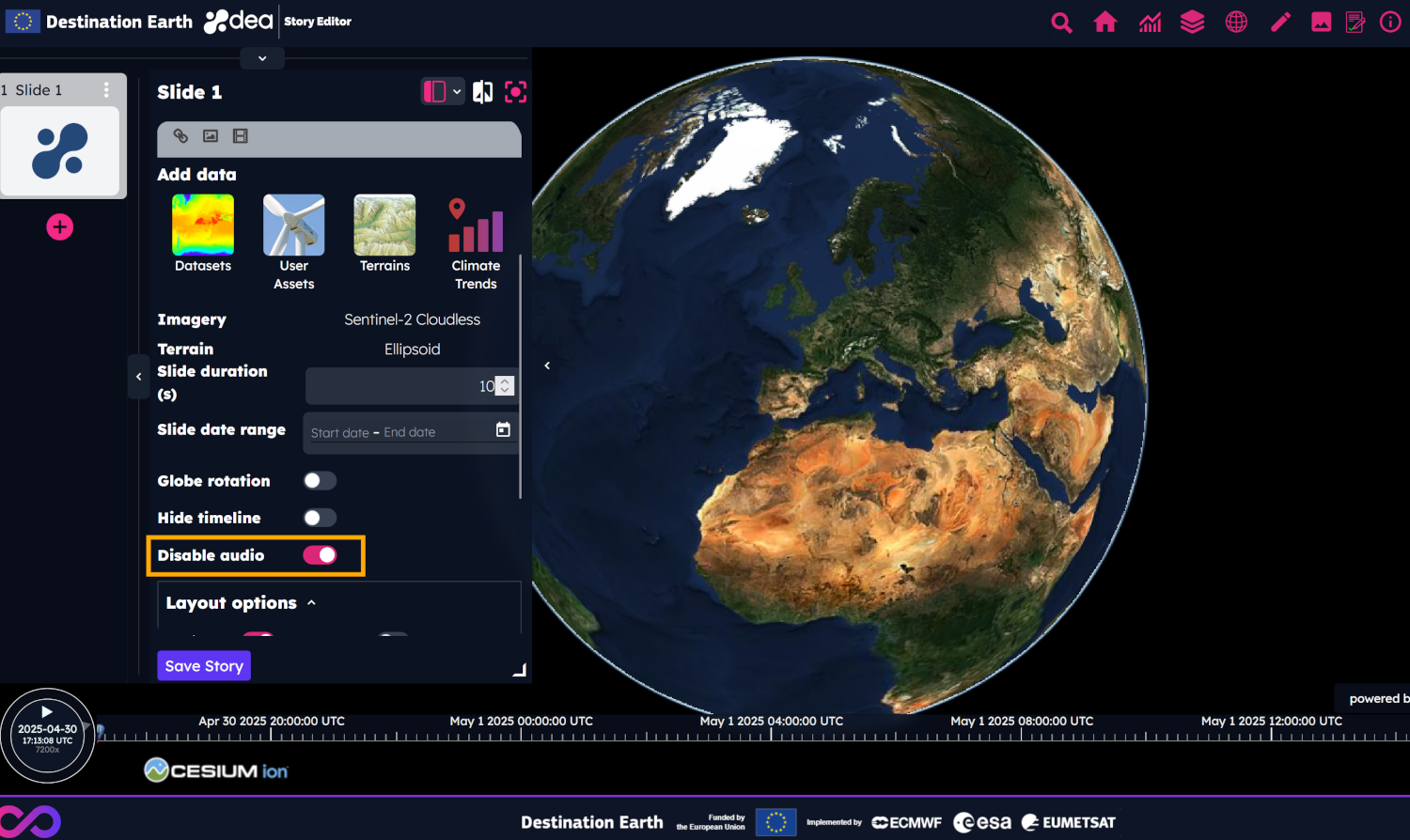
It is possible to disable the feature in one or more slides of a story by clicking on the following toggle of the Story Editor.
 Export shared and public stories
Since the DEA 1.11.0 release, users can generate a PDF version of public and shared stories from both the Story Editor and the Story Viewer, for an offline and non-interactive visualization.
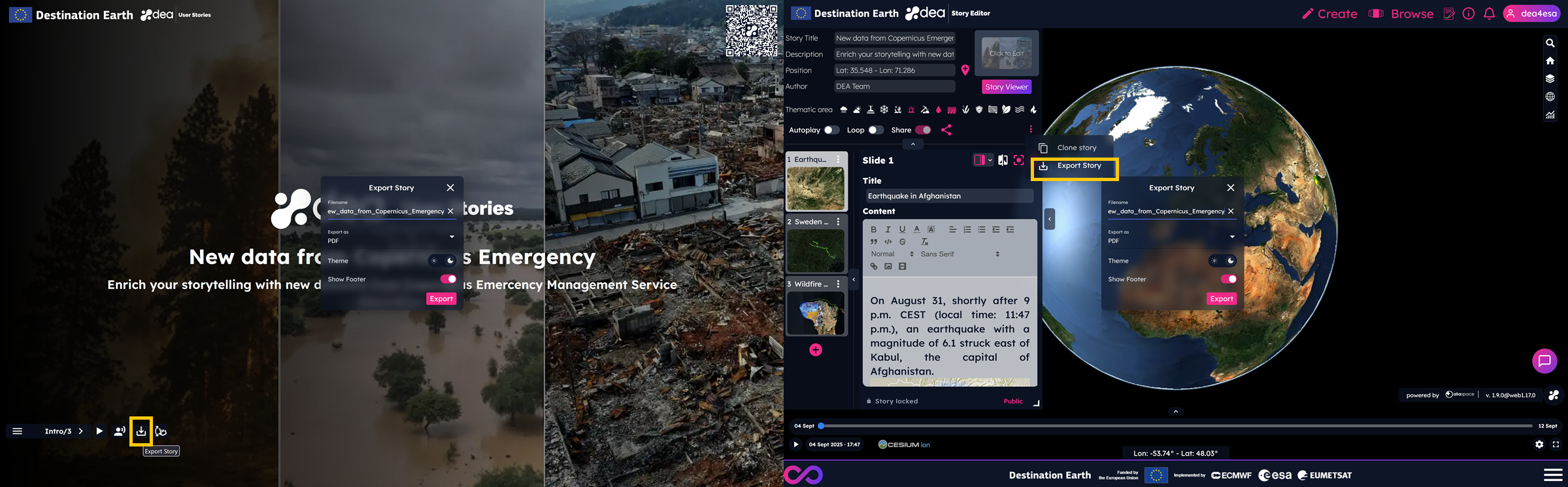
Users can select the file name, the format (only PDF is available currently), the theme (light or dark) and whether the DestinE footer should be shown or not in the exported story. A notification will inform users of the outcome of the submitted request. The file can be downloaded from the notification panel.
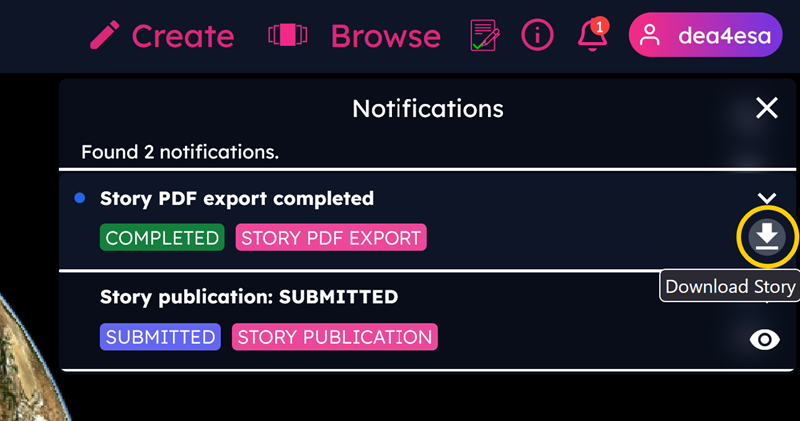
The number of requests per day is submitted to a quota. The authentication is required to access this feature.
Publish your stories!
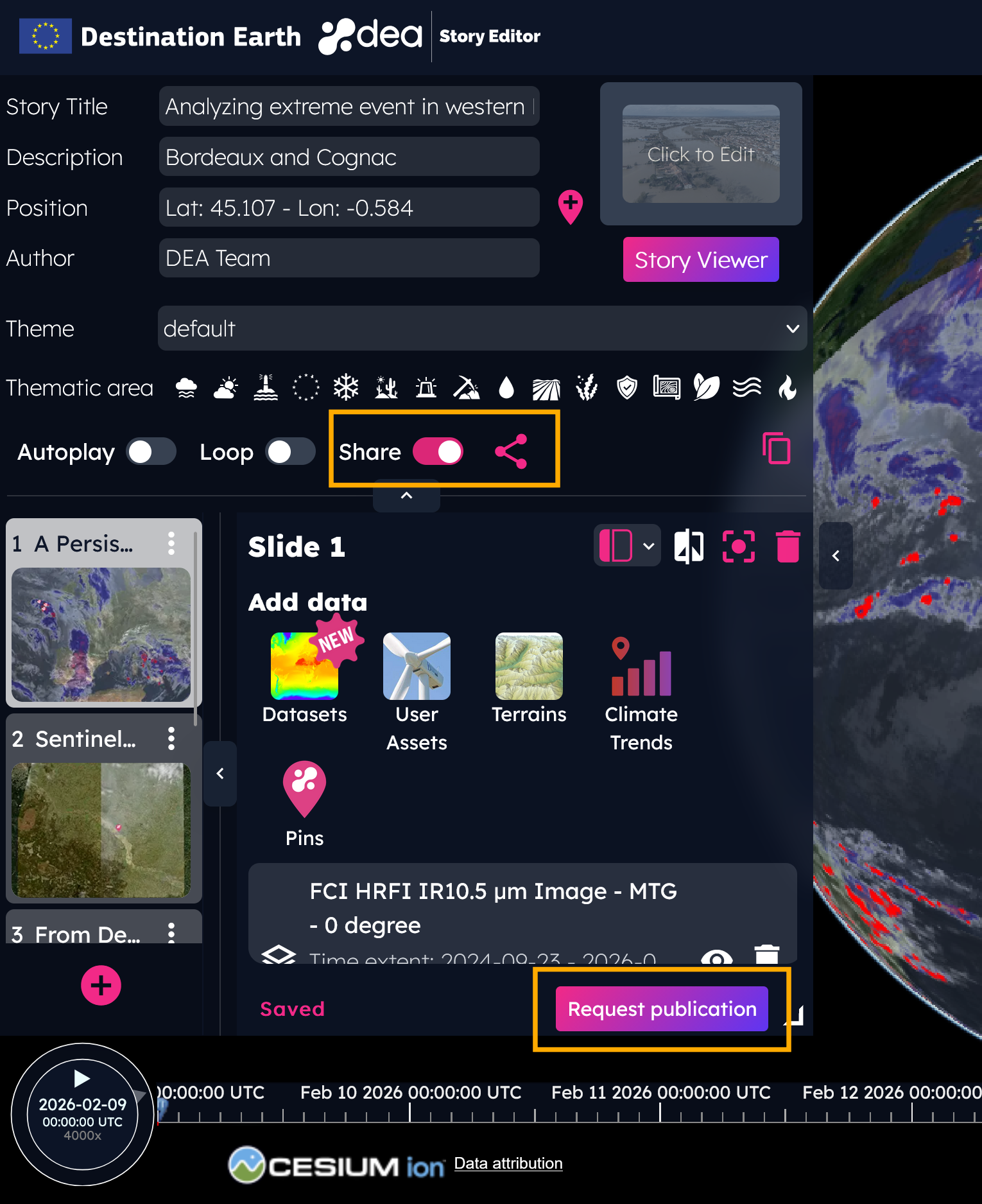
 It is needed to accept the updated
 Terms of Service before requesting the publication of a story, since a review board will evaluate this request.
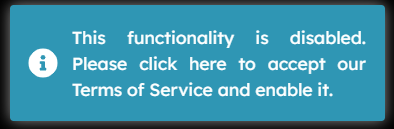
If the Request publication button is clicked before acceptance, a toast will inform users that the functionality is disabled unless the ToS is accepted.
By clicking on the Request publication button, users will see a confirmation notification — either a success message or an error message asking to try again. Once submitted successfully, the button will be replaced with a tag, and the story will be locked until the review board’s outcome.
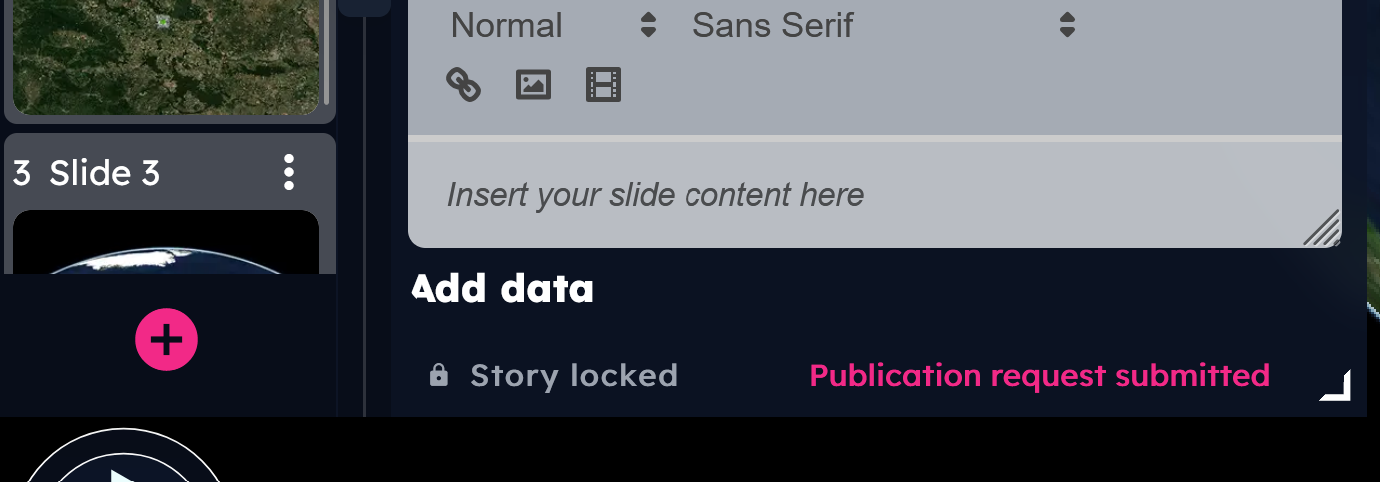
There are three possible outcomes of the publication request:
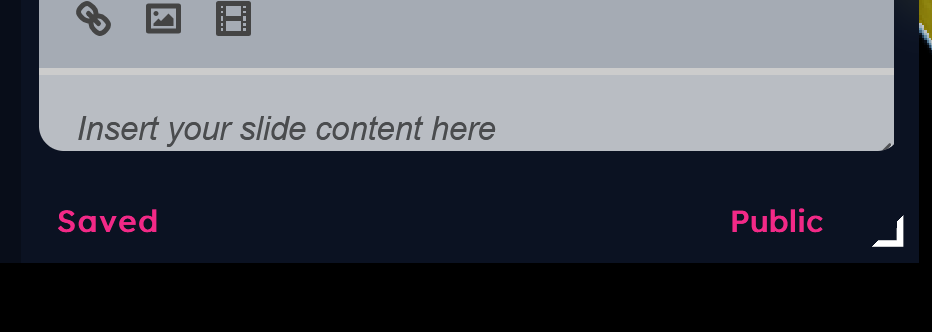
Approved: in this case, the story will be published on DEA. Once published, the user can no longer edit it. To request changes, the user can contact the DEA support at dea-support@alia-space.com.
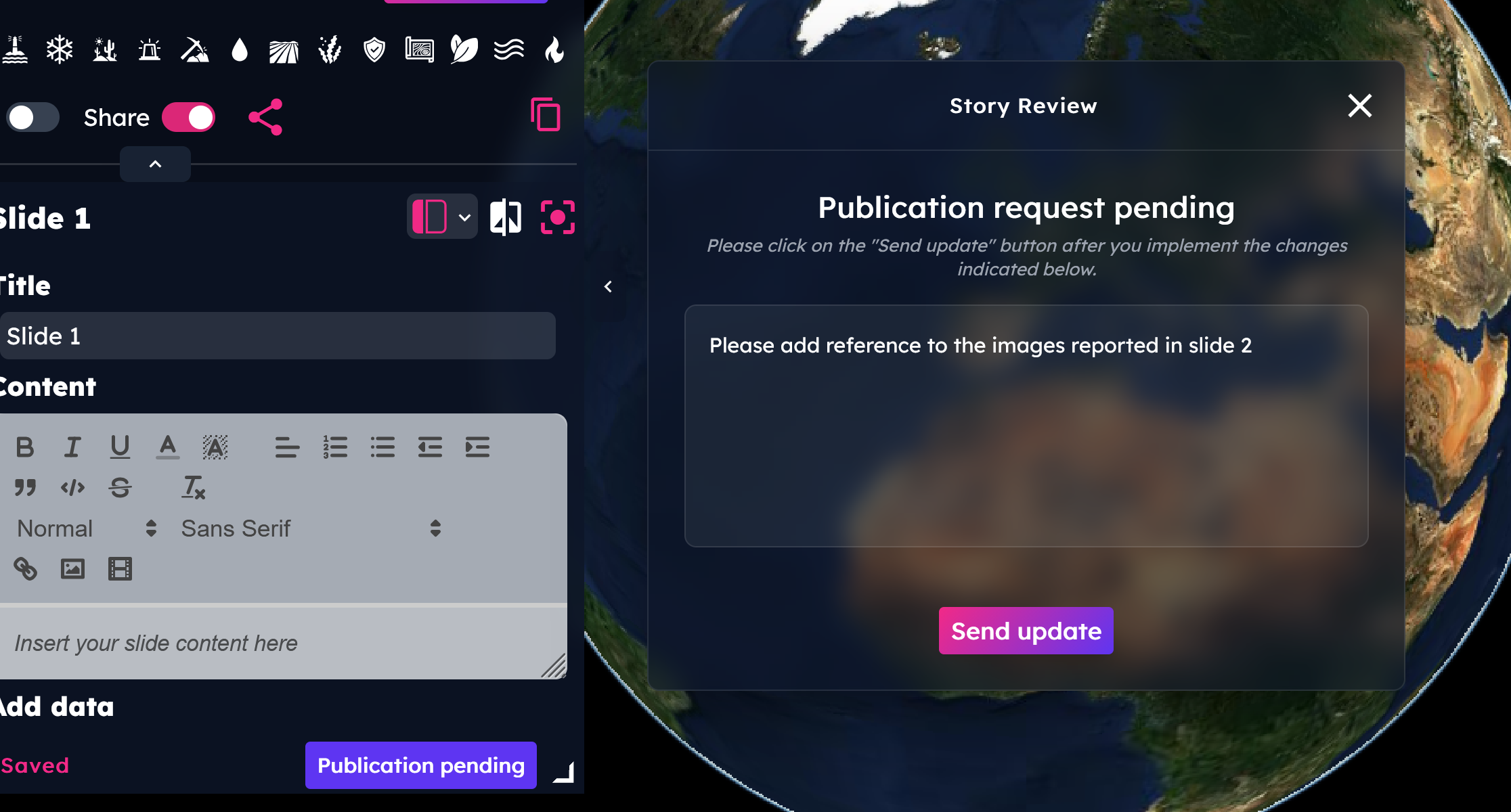
Changes requested: in this case, the story’s status changes to
Publication pending. By clicking on the tag in the Story Editor, user can read the reviewer’s comments, make the requested edits, then click “Send update” to resubmit for review.
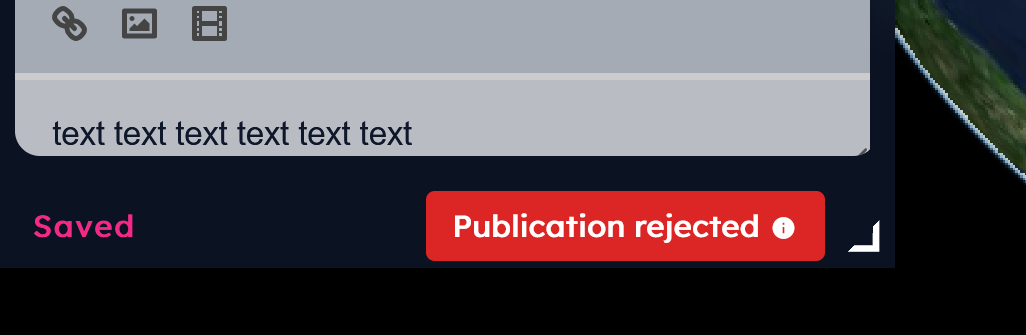
Rejected: in this case, the story’s status changes to
Publication rejectedand the publication request cannot be resubmitted.
Notifications panel and visualize the story by clicking on the icon shown in the notification item.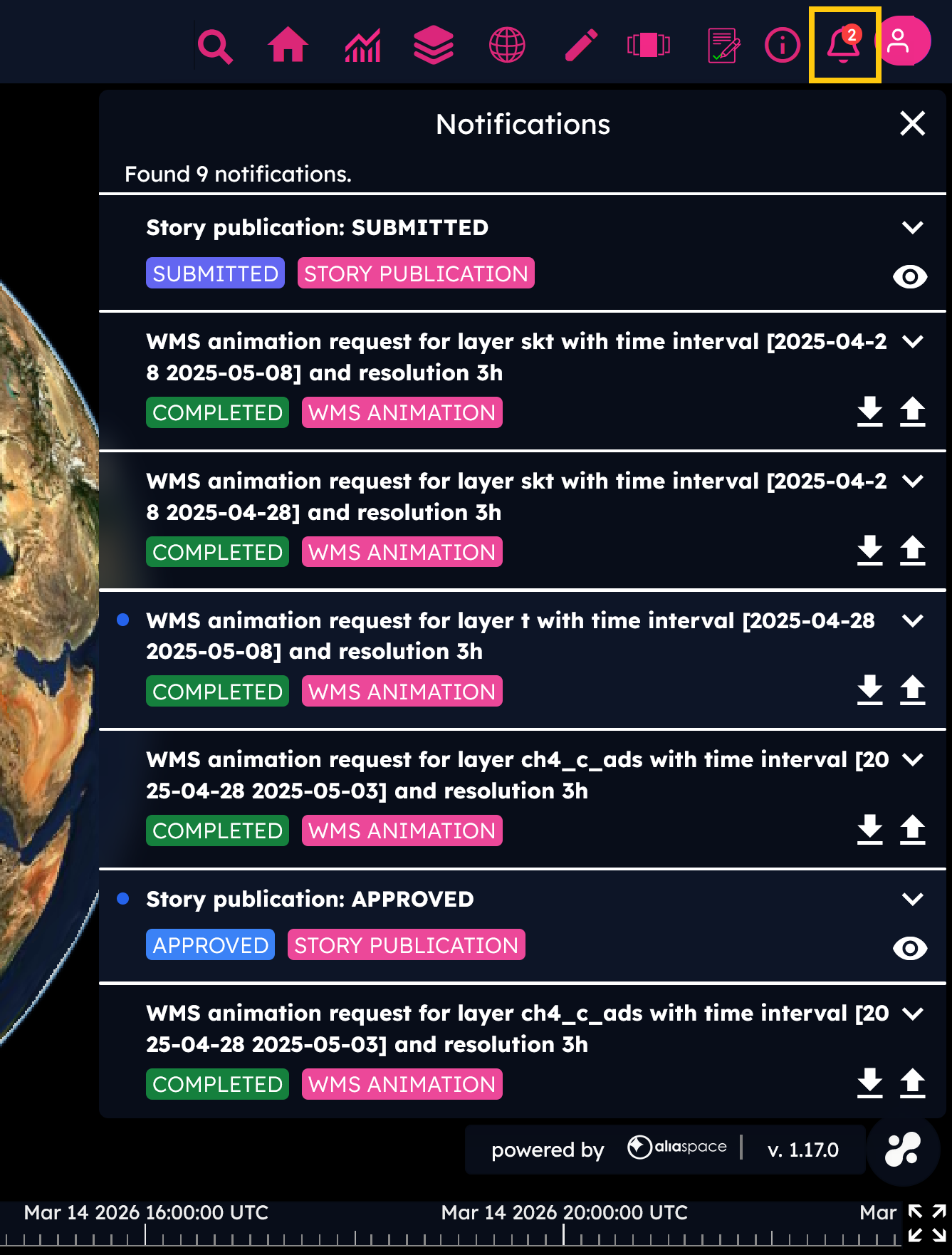
Note
Please note that the number of publication requests per day is limited to a daily quota.